How do I audit a full extension stack for Hyvä readiness before committing to a migration?
To audit a Magento extension stack for Hyvä readiness, list every enabled module and flag those with storefront code. Check each flagged module against the Hyvä Compatibility Module Tracker and its vendor. Treat the checkout and any Adobe Commerce features as separate decisions. Luma modules lean on RequireJS, Knockout, and jQuery, and Hyvä loads none of them. That is why Hyvä’s documentation says Luma or Blank modules need a compatibility module. A Hyvä extension compatibility audit turns your stack into a sorted list you can price before you commit.
Quick answer
A Hyvä extension compatibility audit for Magento 2 sorts each storefront-facing module into one of four statuses. Those are natively compatible, compatibility module published, requested or accepted, and not listed. Modules without a view/frontend folder rarely need Hyvä changes. A Luma checkout can stay on Hyvä’s theme fallback, while Hyvä Checkout is a paid product. Adobe Commerce B2B and Live Search need Hyvä Enterprise, a single suite since July 2026. The Hyvä Theme itself has been free and open source since November 10, 2025.
How to run a Hyvä extension compatibility audit
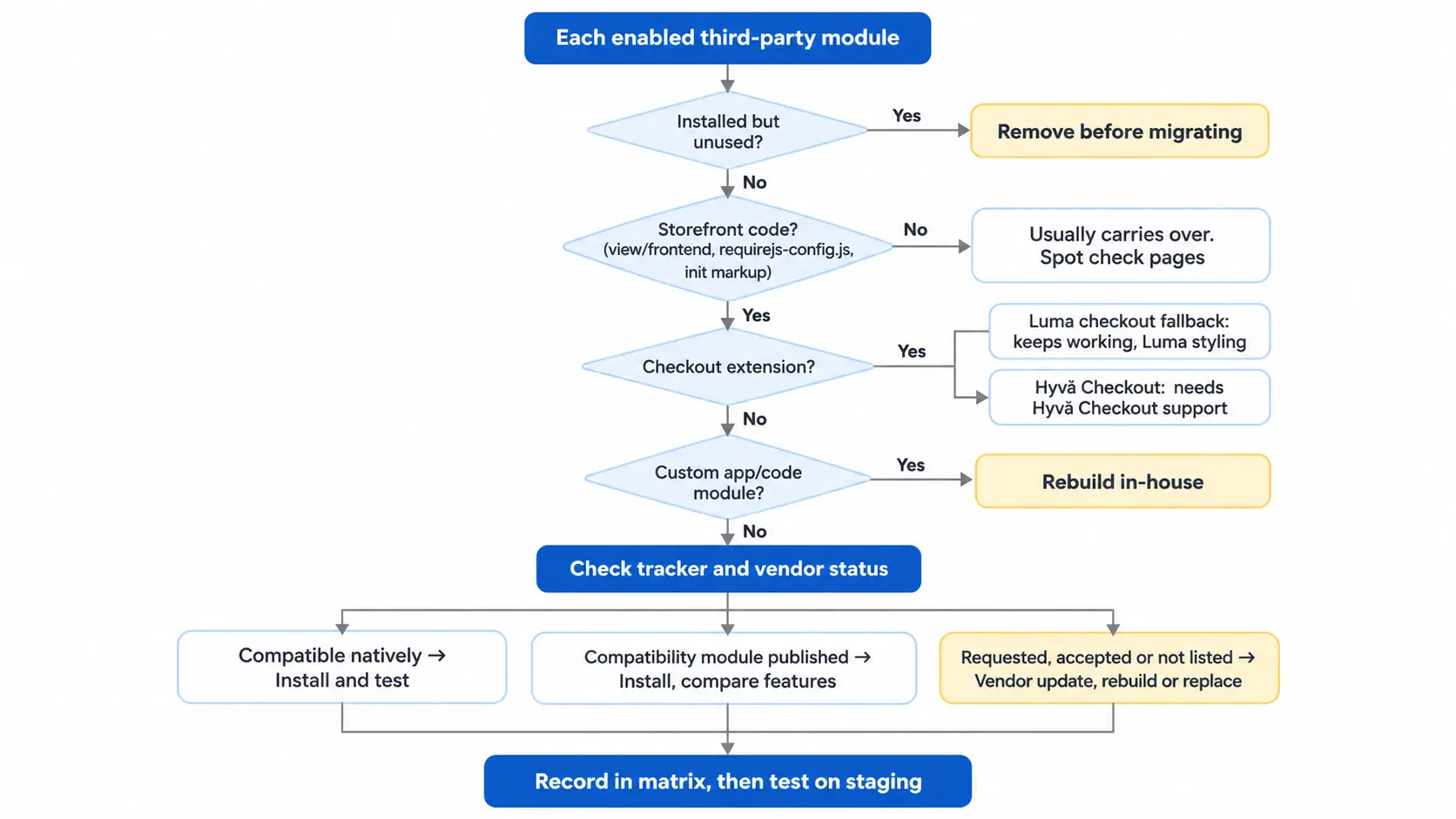
Step 1: Export the enabled Magento module list
Run the module status command against a copy of production so the list matches what customers load.
bin/magento module:status --enabledDrop the core Magento_ modules from the list. Keep custom app/code modules in, because no public tracker will ever cover them. If a module is installed but unused, remove it before the audit starts.
Step 2: Find modules with Luma frontend code
Most Hyvä extension compatibility risk sits in modules that render on the storefront. These commands surface the main Luma signals outside core:
find vendor app/code -type d -path "*/view/frontend" -not -path "vendor/magento/*"
find vendor app/code -name requirejs-config.js -path "*/view/frontend/*" -not -path "vendor/magento/*"
grep -rlE "x-magento-init|data-mage-init" --include=*.phtml vendor app/code --exclude-dir=magento- A view/frontend folder means the module adds layout XML or templates to the storefront.
- If requirejs-config.js exists, the module loads Luma JavaScript that Hyvä will not run.
- Templates containing x-magento-init or data-mage-init boot RequireJS components, so they need rewriting in Alpine.js.
Modules with none of these signals, such as an ERP connector or a Google Shopping feed exporter, usually carry over. Spot check any page where they could still output content.
The third-party, open-source Hyvä Compatibility Checker CLI produces the same signals as a report. It scans a Magento project and exports JSON and CSV files. Treat that output as a starting list, because a module can ship frontend files that need no changes.
Step 3: Check each module’s Hyvä compatibility status
Look up every module with storefront code on the Hyvä Compatibility Module Tracker, then check the vendor’s changelog. Extension vendors often ship Hyvä support in their own packages, and the tracker does not always reflect it. A module listed as open there may already work with Hyvä, so confirm with the vendor before planning a rebuild. Sort each module into one bucket:
- Compatible: it works with Hyvä natively and needs no extra package.
- Published: a compatibility module exists. Hyvä notes that some cover only part of the original features, so compare coverage against what you actually use.
- Accepted or requested: no usable code exists yet. Plan it as a rebuild unless the vendor gives you a date.
- Not listed: you build the compatibility layer, the vendor does, or you replace the extension.
Tracker and vendor statuses change often, so date your matrix and recheck before you sign off.
Step 4: Choose Luma checkout fallback or Hyvä Checkout
Checkout extensions follow your checkout choice. Hyvä can keep a Luma-based checkout running through its theme fallback module, which loads RequireJS and Luma styles on checkout routes only. For the default Magento checkout, Hyvä ships hyva-themes/magento2-luma-checkout, which configures that fallback for you. Your existing payment and one-step checkout extensions keep working there. You then style that checkout the Luma way.
Moving to Hyvä Checkout changes the question. Every payment and shipping module then needs Hyvä Checkout support, so audit each one against that product. On Magento Open Source, Hyvä Checkout requires a paid license. On Adobe Commerce, it comes inside the Hyvä Enterprise suite.
Step 5: Check Adobe Commerce B2B and Live Search support
On Adobe Commerce, frontend support for B2B, Live Search, and Product Recommendations comes from Hyvä Enterprise. Since July 2026, Hyvä Enterprise is a single suite that also includes Hyvä Checkout. Include the Enterprise license in your migration estimate if you use these features.
Step 6: Build the Hyvä extension compatibility matrix
Give each flagged module one row with its status and the action it needs. Use this mapping to fill in the action column:
| Hyvä status | Action | What to estimate |
|---|---|---|
| Compatible natively | Install and test | Smoke test only |
| Compatibility module published | Install, compare features | Feature gap fixes |
| Requested, accepted, or not listed | Vendor update, rebuild, or replace | Template and Alpine.js rebuild |
| Custom app/code module | Rebuild in-house | Size of its frontend code |
| Unused | Remove before migrating | Nothing |
After filling in the matrix, install Hyvä on a staging copy with every published compatibility module. Walk the key journeys: category filters, product options, cart, and customer account. Feature gaps in partial compatibility modules usually show up here. A file scan cannot tell you which features you actually use.
What a Hyvä extension compatibility check often misses
Add these checks to any Hyvä extension compatibility audit:
- Google Tag Manager and cookie consent modules load scripts on every page. One unsupported module there affects the whole storefront.
- CMS blocks and pages can hold inline jQuery or init markup that a module scan never finds. Search the
cms_blockandcms_pagecontent columns too. - Template overrides in your current
app/designtheme do not carry over to Hyvä, even for modules that are already compatible. - A vendor’s “Hyvä compatible” label may apply only to a newer version, and that upgrade can bring its own breaking changes.
Turning the Hyvä extension compatibility audit into a decision
If most storefront modules are natively compatible or have a published compatibility module, the migration is mostly a theme build. If several revenue-critical modules have no Hyvä support yet, price those rebuilds first. They decide whether migrating now makes sense. Our Hyvä theme development team can review your matrix with you before you commit.
Related Answers

Still need help?
Talk to our Hyvä experts
Not sure which bucket a module belongs in, or what a rebuild involves? We can walk through your audit matrix with you.