How do I write a compatibility shim for a module that does not support Hyvä?
Write a separate Magento 2 module that sits beside the Luma-only extension and replaces its templates on Hyvä. Hyvä calls this kind of shim a compatibility module. You register it in CompatModuleRegistry through etc/frontend/di.xml, and Hyvä then loads the module’s templates instead of the extension’s. The vendor’s code stays untouched, and vendor updates still install cleanly.
Quick answer
Luma-only Magento 2 extensions need a Hyvä compatibility module to run on the Hyvä theme. Create Hyva_VendorModule with hyva-themes/magento2-compat-module-fallback as a dependency, then pair it with the original module in Hyva\CompatModuleFallback\Model\CompatModuleRegistry via etc/frontend/di.xml. Copy each broken .phtml template to the same path in Hyva_VendorModule, then rewrite it in Alpine.js and Tailwind. Put block changes in hyva_ prefixed layout files so Luma store views stay unaffected.
Check whether a Hyvä compatibility module already exists
Search the Hyvä Compatibility Module Tracker, then Packagist, then the extension vendor’s own changelog. Smile ElasticSuite and other popular Magento 2 extensions already have one under the hyva-themes Composer vendor. Check its README first, since some compatibility modules only cover part of the original module’s features.
If none exists, audit what the extension ships to the storefront. Anything built on RequireJS, jQuery, Knockout, or LESS breaks on Hyvä. Controllers, observers, plugins, cron jobs, and admin screens usually work unchanged. Hyvä’s own guidance says compatibility work is mostly limited to template files.
How to build the Hyvä compatibility module
1. Set up the Hyvä compatibility module files
Hyvä’s naming conventions combine the Hyva namespace with the original vendor and module name. For example, Smile_ElasticSuite becomes Hyva_SmileElasticSuite. In the examples below, Vendor_Module stands for the original extension and Hyva_VendorModule for your compatibility module. A new compatibility module starts with four files: composer.json, registration.php, etc/module.xml, and etc/frontend/di.xml. Hyvä’s folder structure guide shows where each one goes. Install the compat-module-fallback package with composer require hyva-themes/magento2-compat-module-fallback, then declare load order in etc/module.xml:
<?xml version="1.0"?>
<config xmlns:xsi="http://www.w3.org/2001/XMLSchema-instance"
        xsi:noNamespaceSchemaLocation="urn:magento:framework:Module/etc/module.xsd">
    <module name="Hyva_VendorModule">
        <sequence>
            <module name="Vendor_Module"/>
            <module name="Hyva_CompatModuleFallback"/>
        </sequence>
    </module>
</config>2. Register the module in CompatModuleRegistry
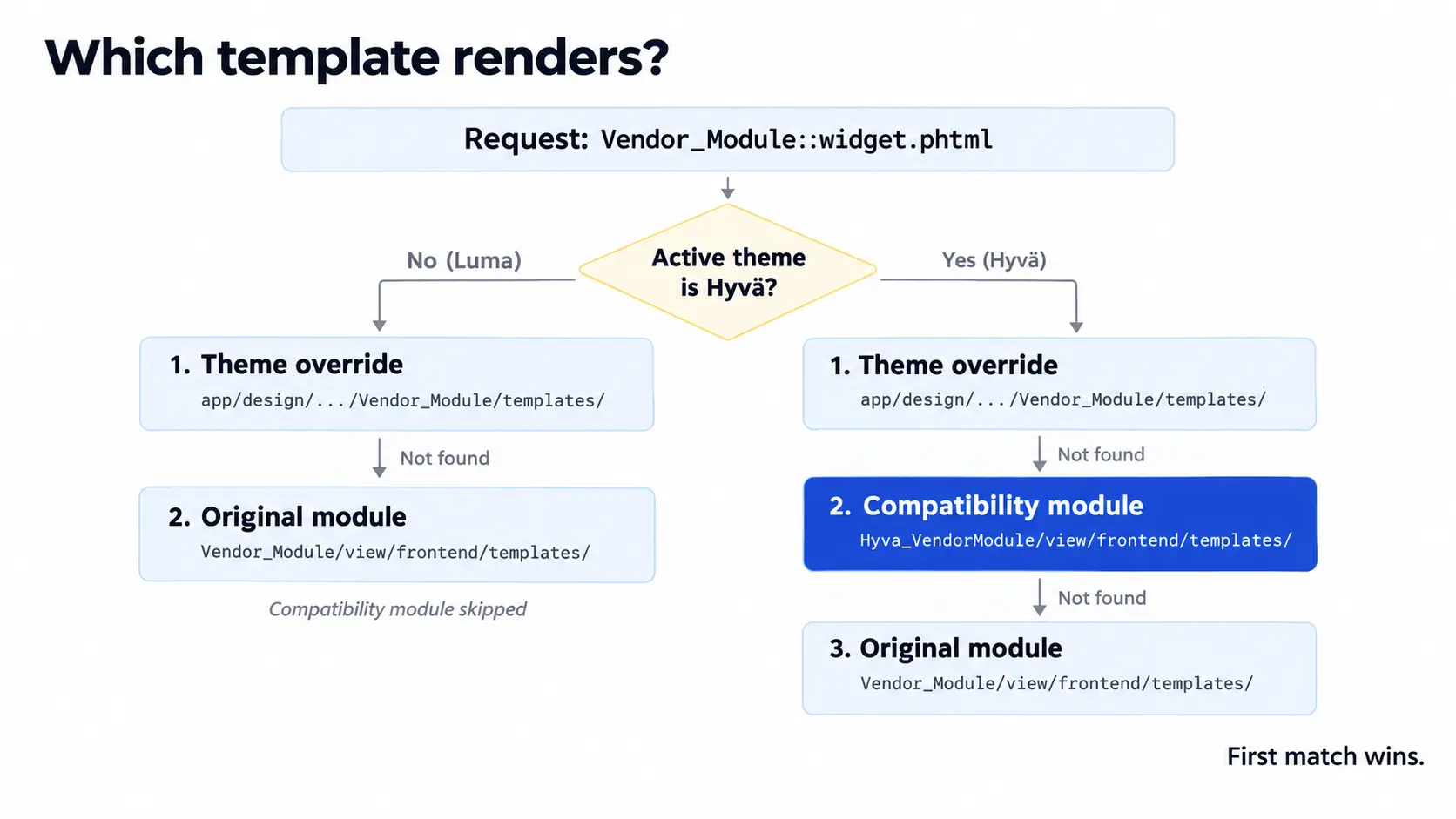
Register Hyva_VendorModule as the compatibility module for Vendor_Module in etc/frontend/di.xml. After registration, Hyvä checks the compatibility module’s template folder before the original module’s. You don’t need layout XML to swap a template.
<type name="Hyva\CompatModuleFallback\Model\CompatModuleRegistry">
    <arguments>
        <argument name="compatModules" xsi:type="array">
            <item name="hyva_vendor_module" xsi:type="array">
                <item name="original_module" xsi:type="string">Vendor_Module</item>
                <item name="compat_module" xsi:type="string">Hyva_VendorModule</item>
            </item>
        </argument>
    </arguments>
</type>A theme can still override a compatibility template. Use the original module name in the theme path, for example app/design/frontend/Vendor/theme/Vendor_Module/templates/. On Luma store views, Magento skips the compatibility module and renders the original template.
3. Rewrite the templates in Alpine.js
Copy each broken template to the same relative path under view/frontend/templates in your module. Then rewrite its behaviour with Alpine.js. A typical conversion looks like this:
<!-- Luma -->
<div data-mage-init='{"Vendor_Module/js/toggle": {}}'>...</div>

<!-- Hyvä -->
<div x-data="{ open: false }">
    <button type="button" @click="open = !open">Details</button>
    <div x-show="open">...</div>
</div>Use these Hyvä replacements for common Luma code:
| Luma code | Hyvä replacement |
|---|---|
| data-mage-init / x-magento-init widgets | Alpine.js x-data components |
| $.ajax, $.post, $.get | Native fetch |
| mage/url | window.BASE_URL |
| Knockout customer-data sections | private-content-loaded event |
| LESS stylesheets | Tailwind CSS classes |
Keep escaping every output through $escaper.
4. Put layout changes in hyva_ handles
Hyvä’s reset theme removes the layout blocks of core Magento modules, such as Magento_Banner’s banner.data block, but keeps their containers. Some blocks need adding back. Others need removing. Per the hyva_ layout handle documentation, Hyvä store views load a hyva_ copy of every handle, after the original. A file such as hyva_catalog_product_view.xml therefore only runs on Hyvä:
<page xmlns:xsi="http://www.w3.org/2001/XMLSchema-instance"
      xsi:noNamespaceSchemaLocation="urn:magento:framework:View/Layout/etc/page_configuration.xsd">
    <body>
        <referenceBlock name="vendor.module.luma.js" remove="true"/>
    </body>
</page>For PHP-side branching, inject Hyva\Theme\Service\CurrentTheme and call isHyva(). Use it sparingly, since layout handles cover most cases.
5. Add the module’s Tailwind styles and rebuild
Templates in a compatibility module use Tailwind classes, and the Hyvä theme’s Tailwind build needs to scan them. Since Hyvä 1.1.15, running module:enable or module:disable regenerates app/etc/hyva-themes.json. The file automatically includes every registered compatibility module, per Hyvä’s technical deep dive. Hyvä 1.4.0 and later ship with Tailwind CSS v4. On those versions, add a view/frontend/tailwind/module.css file with @source directives for the module’s templates and layout folders. On Hyvä 1.2 and 1.3, which use Tailwind v3, use a tailwind.config.js file instead. Then run npm run build from your theme’s web/tailwind folder.
6. Test the Hyvä compatibility module on every store view
Run setup:upgrade and flush the cache. On the Hyvä store view, open the browser console and look for RequireJS errors such as “require is not defined”. If the install also runs a Luma store view, confirm it still renders the original templates.
What to check before shipping a Hyvä compatibility module
- Never edit the original vendor module, because the next composer update overwrites it.
- After every vendor update, diff your overridden templates against the new originals. A new option the vendor adds to their template won’t appear in your copy, and nothing warns you.
- Checkout components built on Knockout need a separate plan. Hyvä Checkout uses Magewire, so a template swap alone won’t cover it.
- Keep customer-specific data out of cached templates. Load it in Alpine by listening for the private-content-loaded event instead.
When a Hyvä compatibility shim isn’t needed
If you maintain the original extension yourself, you don’t need a separate compatibility module. Add hyva_ layout files and Hyvä templates directly to the extension. Luma stores ignore them, and Hyvä stores pick them up automatically.
Where to start with a Hyvä compatibility module
For third-party extensions, keep the Hyvä compatibility module separate from the vendor code. You can then update the vendor module without losing your changes. Start with the template customers see most. Once it loads without a RequireJS error, move to the next one. If an extension’s frontend leans heavily on Knockout or checkout components, our Hyvä theme development team can scope the conversion with you.
Related Answers

Still need help?
Talk to our Hyvä experts
Stuck converting an extension’s RequireJS or Knockout code? We can review it and scope the compatibility module with you.