How do I fix a store stuck in maintenance mode after a failed deploy?
On Magento 2, a leftover var/.maintenance.flag file keeps a store stuck in maintenance mode after a failed deploy. The deploy script created that file at the start, then failed before the step that removes it. Fix the step that failed, re-run the commands it skipped, then run bin/magento maintenance:disable to bring the store back.
Quick answer
Magento 2 serves a 503 page to every visitor while var/.maintenance.flag exists. A deploy that fails partway leaves that file in place. Before you remove it, confirm bin/magento setup:db:status reports all modules up to date. Then run bin/magento maintenance:disable, or delete the file over SFTP if you have no SSH access.
Why Magento gets stuck in maintenance mode after a failed deploy
According to Adobe’s maintenance mode documentation, Magento switches maintenance mode on whenever var/.maintenance.flag exists. While the file is there, every request gets a 503 page. By default, that page reads “Service Temporarily Unavailable” and blames maintenance downtime or capacity problems. This applies to both Magento Open Source and Adobe Commerce on 2.4.x.
A hand-written deploy script runs maintenance:enable first and maintenance:disable last. Deployer’s Magento 2 recipe is more selective. It only switches maintenance mode on when a database upgrade or config import is pending. Either way, any step that exits with an error stops the script early. The flag stays in place, and Magento stays stuck in maintenance mode until someone clears it.
A long maintenance window has an SEO cost. Google’s guidance on pausing a site treats a 503 as acceptable for a day or two at most. Google warns that keeping a whole site down longer has significant effects on how it appears in Search.
The common failure points are:
- composer install fails on a version conflict or a missing auth key.
- setup:upgrade hits a database schema error from a new or updated module.
- setup:di:compile runs out of PHP memory (“Allowed memory size … exhausted”) or finds a broken class.
- setup:static-content:deploy fails on a theme or LESS compile error.
What to check before you disable Magento maintenance mode
- Database state: run bin/magento setup:db:status. Lift maintenance mode too early and Magento throws a “Please upgrade your database” exception. In production mode, visitors see “There has been an error processing your request” and the detail goes to var/report.
- Exempt IPs: if var/.maintenance.ip exists, your own IP may see a working store while customers still get the 503 page.
- Backups: if setup:upgrade failed halfway through a schema change, back up the database before you run it again.
- Adobe Commerce Cloud: fix the code and redeploy through the pipeline rather than patching files on the live container. On Cloud, a 503 that survives a clean maintenance:status check needs a redeploy or an Adobe support ticket.
How to fix a Magento store stuck in maintenance mode
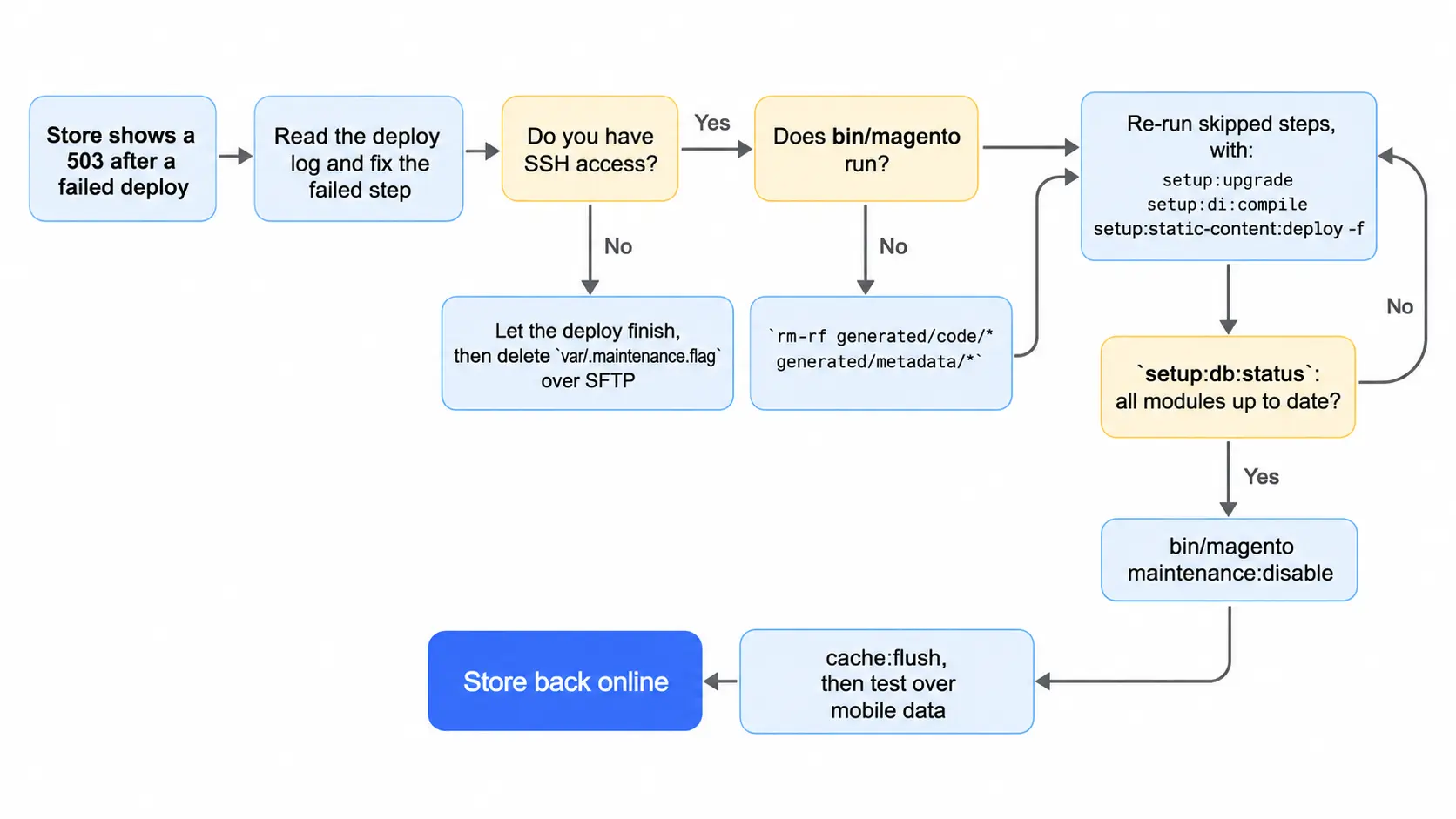
Step 1: Read the deploy log and fix the failure
Start with the output of your CI job or deploy script, then check var/log/exception.log and var/log/system.log. The last command that ran tells you where the deploy stopped. Fix that cause first. Clearing var/.maintenance.flag before you fix it only swaps a 503 page for a broken store.
Step 2: Finish the deploy steps that didn’t run
From the Magento root, re-run whatever came after the failed step. A typical production sequence looks like this:
composer install --no-dev
bin/magento setup:upgrade
bin/magento setup:di:compile
bin/magento setup:static-content:deploy -f
bin/magento setup:db:statusAdd your store locales to the static content command if you deploy more than one language. Wait for setup:db:status to report that all modules are up to date before you move on.
Step 3: Take Magento out of maintenance mode from the CLI
bin/magento maintenance:status
bin/magento maintenance:disableExempt IP addresses show up in the status output. Clear them with bin/magento maintenance:allow-ips –none so they don’t carry into your next deploy.
Step 4: Fix a broken bin/magento or remove .maintenance.flag without SSH
If bin/magento throws a fatal error, the generated code is usually stale. Clear it, then re-run setup:upgrade and setup:di:compile:
rm -rf generated/code/* generated/metadata/*Without SSH access, a Magento store stuck in maintenance mode can still come back. Delete var/.maintenance.flag through SFTP or your hosting file manager. Do that only once someone has finished the deploy, or visitors will land on a broken store.
Step 5: Clear cache and confirm the storefront works
Flush the cache next. Servers running OPcache with opcache.validate_timestamps=0 need a PHP-FPM restart as well.
bin/magento cache:flushThen load the homepage, a product page, and checkout over mobile data. An exempt office IP can hide a store that’s still down. Adobe’s maintenance mode documentation says to stop message queue consumers during maintenance mode. Check that cron or your process manager has started them again.
Keep Magento out of maintenance mode on the next deploy
The lasting fix is a build-then-switch deploy. The build runs in a separate release directory. Only when every step passes does a symlink switch the live site over. Deployer’s Magento 2 recipe works this way out of the box. A failed build then never touches the live site. Maintenance mode only has to cover the database upgrade.
If you’d rather not build that pipeline yourself, our Magento development team sets up and maintains release processes like this.
What to do if the Magento deploy keeps failing
A Magento site stuck in maintenance mode comes back the moment var/.maintenance.flag goes. The real work is the failed deploy step, so remove the file last. A command that fails twice in a row points to a code or server problem. Check PHP memory limits and recent module changes next.
Related Answers

Still need help?
Talk to our Magento experts
Store still showing a 503 after a failed deploy, or want a release process that can’t take it offline? We can help you diagnose it and fix it.