How do I roll back a failed Magento 2 upgrade?
To roll back a failed Magento 2 upgrade, restore the application code and database from a consistent pre-upgrade backup, including media files if the upgrade changed them. Enable maintenance mode and stop cron jobs and queue consumers before restoring data. Verify that the restored code, Composer dependencies, and database match before reopening the store.
Quick answer
Restore the last known working Magento release and its matching database backup. Restore changed media files, preserve the failed state for investigation, and verify the storefront, admin, checkout, cron jobs, and integrations before disabling maintenance mode.
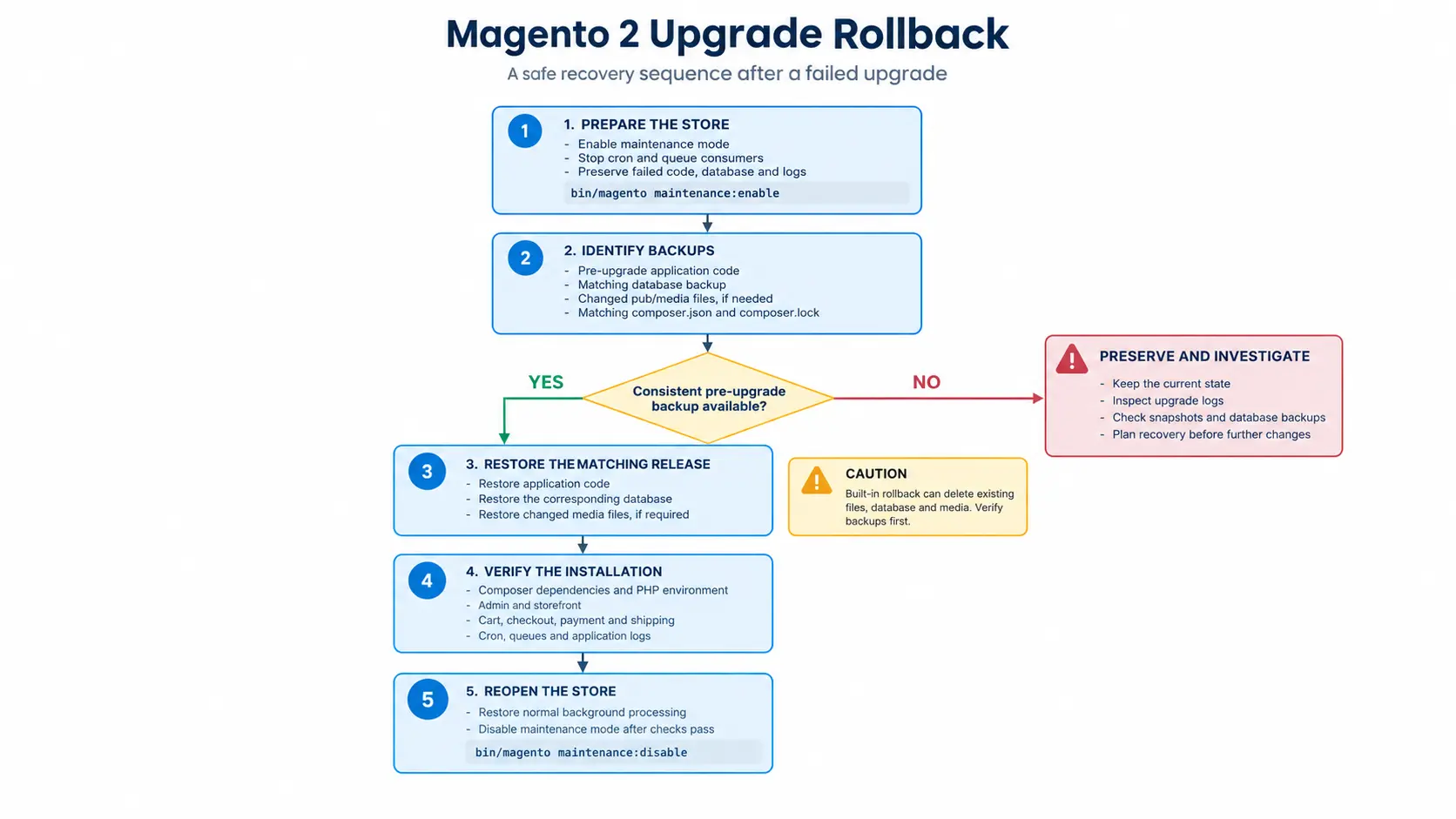
1. Prepare the store for rollback
Enable maintenance mode and stop background processes to prevent additional writes during recovery.
bin/magento maintenance:enableDisable cron jobs and stop queue consumers using the method appropriate for your deployment. Preserve the failed codebase, database, and upgrade logs before restoring anything. These copies help investigate the failure and recover data created after the backup.
2. Identify a consistent pre-upgrade backup
Find a recovery point containing the previous application code and database. Include pub/media if the upgrade changed media files. For Composer-based installations, recover the matching composer.json and composer.lock files as well.
Confirm that the database backup predates schema changes made by bin/magento setup:upgrade. Restoring older code against a newer database can cause schema, module, and runtime errors.
3. Restore the code and database
For a conventional server installation, restore the previous release and database using your tested deployment and backup procedures. Adobe Commerce also documents a built-in rollback command for compatible Magento-generated backups:
bin/magento info:backups:list

bin/magento setup:rollback \
  --code-file="CODE_BACKUP_FILENAME" \
  --db-file="DATABASE_BACKUP_FILENAME" \
--media-file="MEDIA_BACKUP_FILENAME"Replace the example filenames with the actual backup filenames. Include only the rollback options you intend to restore.
Warning: The built-in rollback can delete application files, the entire database, or media files before restoring the selected backup. Adobe’s backup and rollback documentation identifies the built-in backup functionality as deprecated and warns that rollback can fail silently. Prefer tested infrastructure snapshots or external backups where available.
4. Restore dependencies and verify Magento
For a Composer-managed installation, run this command from the Magento root after restoring the matching Composer files and confirming the required PHP and Composer environment:
composer installCheck app/etc/env.php, file ownership, generated code, static assets, and cache configuration. Regenerate files or redeploy static assets when the restored release requires it.
Avoid running bin/magento setup:upgrade simply to clear an error. First establish that the restored code and database are compatible.
5. Test Magento before reopening the store
Keep maintenance mode enabled until these checks pass:
- Product pages, category pages, and search work.
- Admin login and configuration pages load correctly.
- Cart, checkout, payment, and shipping integrations function.
- Cron jobs and message queue consumers process work successfully.
- Application, PHP-FPM, and web server logs show no new critical errors.
Restore normal background processing and disable maintenance mode only after verification:
bin/magento maintenance:disableWhat if no pre-upgrade backup exists?
Do not blindly downgrade Composer packages or reverse database schema changes manually. Preserve the current state, inspect upgrade logs, and check for infrastructure snapshots or database backups. If no consistent recovery point exists, assess the current installation and plan recovery before making further changes.
Practical recommendation: Test the rollback procedure in staging before another production upgrade. A verified recovery point and matching code and database versions are the foundation of a safe rollback. If you need help recovering your store, explore Our Magento development services.
Related Answers

Still need help?
Talk to our Magento experts
Get help diagnosing a failed upgrade, restoring a consistent codebase and database, and validating your store before reopening it.