How do I test a Magento 2 upgrade on staging before going live?
To test a Magento 2 upgrade before going live, run it on a staging copy of production first. Use the exact commands you’ll run on launch night. Then test extensions, checkout, cron, and integrations on the upgraded store. You’re done when a full rehearsal runs clean with no manual fixes.
Quick answer
Clone production (code, database, media) to a staging server that meets the new Magento 2 version’s system requirements. Check extension compatibility, run the Composer upgrade and bin/magento setup:upgrade, then regression test checkout, payments, shipping, cron, and integrations. Rehearse the full upgrade on a fresh database copy and time it before you schedule the production window.
How to test a Magento 2 upgrade on staging, step by step
Expect to repeat steps 4 to 7 until a run passes with no manual fixes.
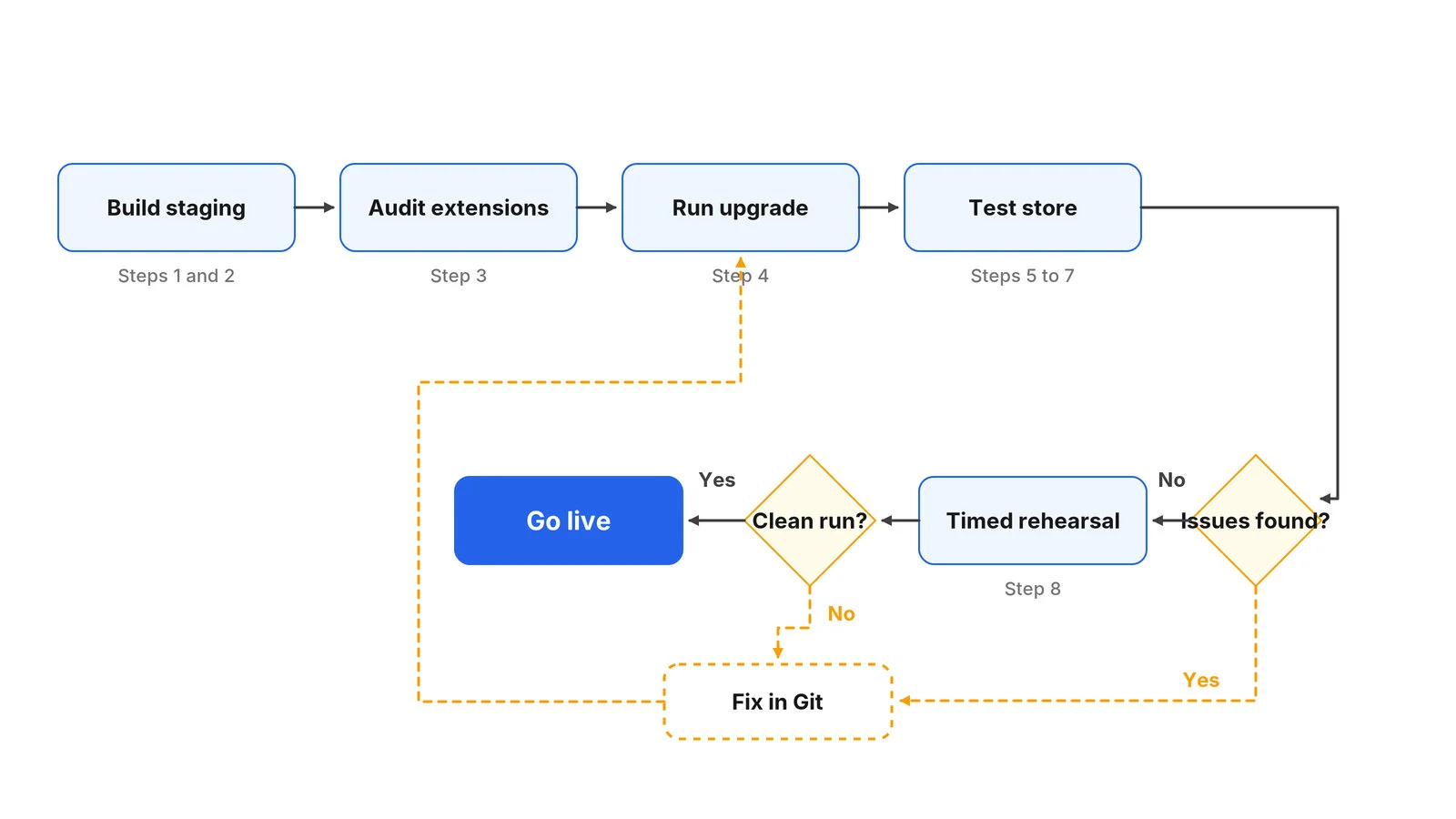
1. Build staging from a fresh production copy
Check out the exact Git commit running on production, then import a recent database dump and the pub/media folder. A database from three months ago won’t show you how the upgrade handles last week’s orders.
Before anyone opens the site, make it safe:
- Update the base URLs in core_config_data to the staging domain.
- Disable outgoing email under Stores > Configuration > Advanced > System, or route it to a mail catcher such as Mailpit.
- Switch every payment method to sandbox credentials.
- Put the site behind HTTP authentication so search engines cannot index it.
- Anonymize customer emails and addresses if more people than your core team will access staging.
2. Match the target version’s server requirements
Each Magento 2 release supports specific PHP, MySQL or MariaDB, OpenSearch, Redis or Valkey, and Composer versions. Check Adobe’s system requirements page for your target version. Set staging up to match the stack production will run after the upgrade. Testing on a different PHP version than live hides real failures.
The latest release is Magento 2.4.9, generally available since May 12, 2026. Version 2.4.9 adds PHP 8.5 support and Valkey as a supported cache backend.
3. Audit extensions and custom code
List every third-party module with composer show and check app/code for anything installed manually. Confirm each vendor supports your target version, and update or replace modules that don’t.
On Adobe Commerce, run Adobe’s Upgrade Compatibility Tool. It analyzes your instance and exports a report of affected code and modules with severity levels. The tool doesn’t cover Magento Open Source. There, review core class preferences, plugins, and theme template overrides by hand.
4. Run the Magento upgrade on staging
Set staging to production mode first with bin/magento deploy:mode:set production. Developer mode hides compile and static content errors that would break the live store.
Run the upgrade exactly as you plan to run it on production, and time each command. The sequence follows Adobe’s Composer upgrade method, which uses the root update plugin:
bin/magento maintenance:enable
composer require magento/composer-root-update-plugin=~2.0 --no-update
composer update
composer require-commerce magento/product-community-edition 2.4.9 --no-update
composer update
bin/magento setup:upgrade
bin/magento setup:di:compile
bin/magento setup:static-content:deploy -f
bin/magento indexer:reindex
bin/magento cache:flush
bin/magento maintenance:disableSwap 2.4.9 for your target version. Adobe Commerce stores replace magento/product-community-edition with magento/product-enterprise-edition. Commit every fix to Git. A fix made by hand on the staging server won’t exist when you deploy to production.
Open Source and Adobe Commerce differ in two places during the upgrade test:
| Magento Open Source | Adobe Commerce | |
|---|---|---|
| Composer package | magento/product-community-edition | magento/product-enterprise-edition |
| Upgrade Compatibility Tool | Not available, manual code review | Available |
5. Regression test the Magento storefront and admin
Click through the flows that make you money, using real product types from your catalog:
- Guest and logged-in checkout with every sandbox payment method
- Shipping rates, tax, coupons, and cart price rules
- Customer registration, login, password reset, and order history
- Search, layered navigation, and configurable or bundle products
- Admin order creation, invoices, credit memos, and product saves
- Transactional emails, checked in the mail catcher
6. Test integrations, cron, and message queues
Connect your ERP, PIM, marketplace feeds, and REST or GraphQL consumers to their test instances, then push sample orders through. Cron failures don’t show on the storefront, so trigger cron with bin/magento cron:run and check the cron_schedule table for errors. Message queue consumers should start and clear their queues without errors in the logs.
7. Compare performance and logs against live
Watch var/log/exception.log and system.log while you test. Compare page load times on the homepage, category, product, and checkout pages with production. If a page is slower after the upgrade, check whether full page cache is still hitting. Then profile the page with a tool like Blackfire or New Relic to find the extension adding queries.
8. Rehearse the go-live and write a rollback plan
Refresh staging with a new production database and run the whole upgrade again from scratch. The timings from this run set your maintenance window. Write each command into a runbook, in order, with its staging run time.
Your rollback plan is the pre-upgrade database backup plus the previous release tag in Git. Restore both on staging once, so you know rollback works before you need it.
What to check before you test a Magento 2 upgrade
- Never leave live payment, ERP, or SMTP credentials on staging. One missed setting can email real customers or push test orders into your ERP.
- setup:upgrade changes the database schema. Reverting the code alone will not restore the old version, so take a full database backup before the live run.
- Read Adobe’s release notes for backward-incompatible changes between your current and target versions.
- Freeze catalog and configuration changes on production during the upgrade window.
When is a Magento upgrade on staging ready to go live?
Ship when the final rehearsal runs clean and every flow on your checklist passes. If you can’t finish a full rehearsal without a manual fix, you’re not ready for production yet. On heavily customized stores, our Magento development team can help you test the Magento 2 upgrade on staging.
Related Answers

Still need help?
Talk to our Magento experts
Staging throwing errors, or an extension that won’t support your target version? We can review your upgrade plan before it reaches production.