How do I configure Varnish as the full page cache for Magento 2?
To configure Varnish for Magento 2, run a supported Varnish version in front of your web server. In the Admin, set Caching Application to Varnish Caching, then generate the VCL with bin/magento varnish:vcl:generate. Purges reach Varnish only after you register it with bin/magento setup:config:set --http-cache-hosts. On a single server, a working setup takes six steps and needs no extensions.
Adobe strongly recommends Varnish in production, because the built-in file system or database page cache is much slower. Adobe Commerce on Cloud is the exception. It uses Fastly for full page caching, so these steps apply to self-hosted stores only.
Quick answer
Magento 2 (Adobe Commerce, on-premises) uses Varnish as its full page cache after four changes. First comes a supported Varnish version: Adobe tests Varnish 8 with Magento 2.4.9 and 2.4.8-p5. Traffic then runs from nginx on port 443 to Varnish on port 80, with Magento’s nginx backend on port 8080. On the Magento side, bin/magento config:set system/full_page_cache/caching_application 2 switches the caching application to Varnish. bin/magento varnish:vcl:generate --export-version=7 produces the VCL to load into Varnish. The last change registers Varnish for cache purges: bin/magento setup:config:set --http-cache-hosts=127.0.0.1:80.
Which Varnish version does Magento 2 support?
Check your Magento patch level before installing anything. Adobe’s system requirements (last updated September 18, 2026) list these on-premises pairings:
| Magento / Adobe Commerce version | Supported Varnish |
|---|---|
| 2.4.9 | 8 |
| 2.4.8-p5 | 8 |
| 2.4.8-p4 | 7.7 |
| 2.4.7-p10 | 8 |
| 2.4.6-p15 | 8 |
| 2.4.4-p18 | 7.7 |
Note the jump inside one release line: Magento 2.4.8-p4 lists Varnish 7.7, while 2.4.8-p5 lists Varnish 8. Older patches pair with older Varnish releases, so confirm your exact patch in Adobe’s table.
Steps to set up Varnish for Magento 2
1. Install Varnish and confirm the version
Install Varnish from your distribution or the official Varnish packages. Distribution packages often lag behind the Varnish version Adobe tests for your Magento release. On Debian or Ubuntu, run apt-cache policy varnish before installing to see which version your distribution offers. Confirm what got installed:
varnishd -V2. Set up the nginx and Varnish port layout
Varnish does not handle SSL, so something else has to terminate HTTPS. The common single-server layout looks like this:
- nginx on port 443 terminates TLS and passes requests to Varnish.
- Varnish listens on port 80 and forwards cache misses to the backend.
- The backend is a second nginx server block on port 8080, serving Magento through PHP-FPM.
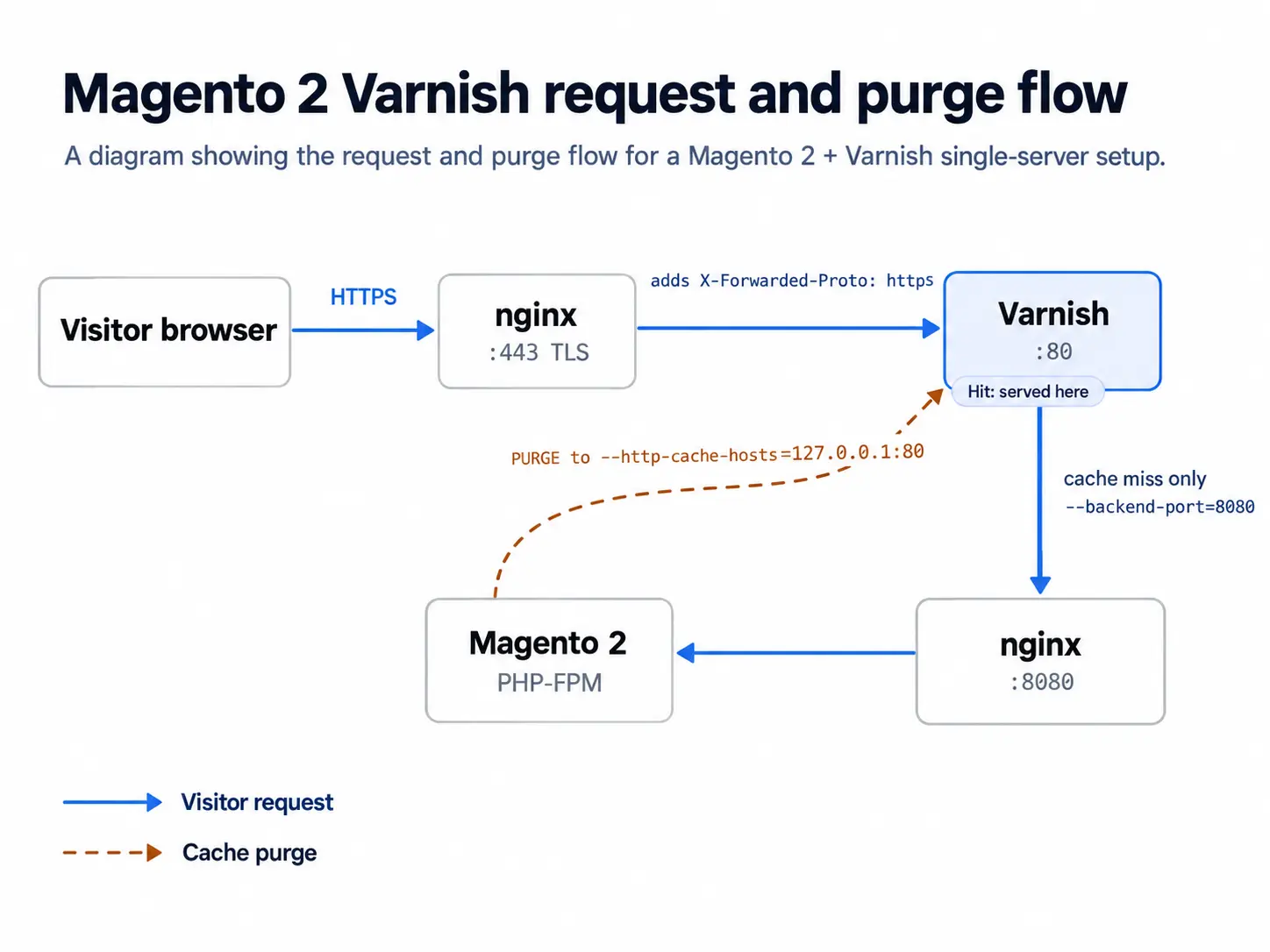
The TLS server block must pass X-Forwarded-Proto: https. Leave it out and Magento treats requests as plain HTTP, which can cause redirect loops. Magento reads the header through the Offloader header setting (web/secure/offloader_header), which defaults to X-Forwarded-Proto.
For Magento 2.4.9 and the latest 2.4.8 and 2.4.7 patches, Adobe’s requirement tables list nginx, not Apache. This guide uses nginx throughout.
3. Switch Magento’s caching application to Varnish
In the Admin, go to Stores > Settings > Configuration > Advanced > System > Full Page Cache. Set Caching Application to Varnish Caching. Under Varnish Configuration, fill in these fields from Adobe’s Varnish setup guide:
- Access list: the hosts allowed to send purge requests, usually
localhost. - Backend host and port: your origin web server, for example
127.0.0.1and8080. - Grace period: how long Varnish serves stale pages when the backend is down. The default is 300 seconds.
To make the same switch from the command line:
bin/magento config:set --scope=default --scope-code=0 system/full_page_cache/caching_application 24. Generate and load Magento’s Varnish VCL
Back up your current /etc/varnish/default.vcl before generating Magento’s version:
bin/magento varnish:vcl:generate --export-version=7 --access-list=localhost --backend-host=127.0.0.1 --backend-port=8080 --output-file=/etc/varnish/default.vclMagento 2.4.9 ships VCL templates for Varnish 4, 5, 6 and 7. The command falls back to the Varnish 6 template whenever the flag is missing. Use --export-version=7 for Varnish 7.x and Varnish 8, since 2.4.9 ships no Varnish 8 template.
Compile-check the file so any syntax error surfaces before Varnish tries to load it:
varnishd -C -f /etc/varnish/default.vcl
systemctl reload varnishAfter each Magento upgrade, run the command without --output-file and diff the output against your live file.
5. Register Varnish as a purge target
Magento must know where to send invalidation requests. Without http_cache_hosts set, saving a product leaves stale pages in Varnish.
bin/magento setup:config:set --http-cache-hosts=127.0.0.1:80
bin/magento cache:flushThe value goes into app/etc/env.php. Use a comma-separated list if you run more than one Varnish node.
6. Verify that pages come from Varnish
Browse a few storefront pages first, then use any of these checks:
- The
var/page_cachefolder in your Magento root stays empty, because Magento has stopped writing its own page cache. - Requesting the same page twice with
curl -sIreturns anAgevalue above 0. - In developer mode, the generated VCL adds an
X-Magento-Cache-Debugheader showing HIT or MISS.
What commonly breaks when Magento 2 uses Varnish
- A 503 “Service Unavailable” from Varnish often means a slow backend response. Adobe’s documented fix is adding
.first_byte_timeout = 600s;to the backend block in the VCL. - Adobe’s known issues list calls for a Varnish restart after any manual deletion of
var/cache. - An access list that is too broad lets anyone purge your cache. Keep it to localhost or your internal network range.
- One block with
cacheable="false"in a layout file disables full page caching for the entire page. Audit third-party extensions for this before blaming Varnish for low hit rates.
With the setup in place, watch hit rates for a few days with varnishstat. Category or product pages that keep missing usually point to an uncacheable block or a cookie the VCL doesn’t strip. Want a second pair of eyes on the setup? Our Magento development team can review it with you.
Related Answers

Still need help?
Talk to our Magento experts
Stuck on a 503 or on pages that never seem to clear from cache? We can review your Varnish, VCL, and nginx setup with you.