How do I install Magento 2 on Ubuntu with Nginx, PHP-FPM and MySQL?
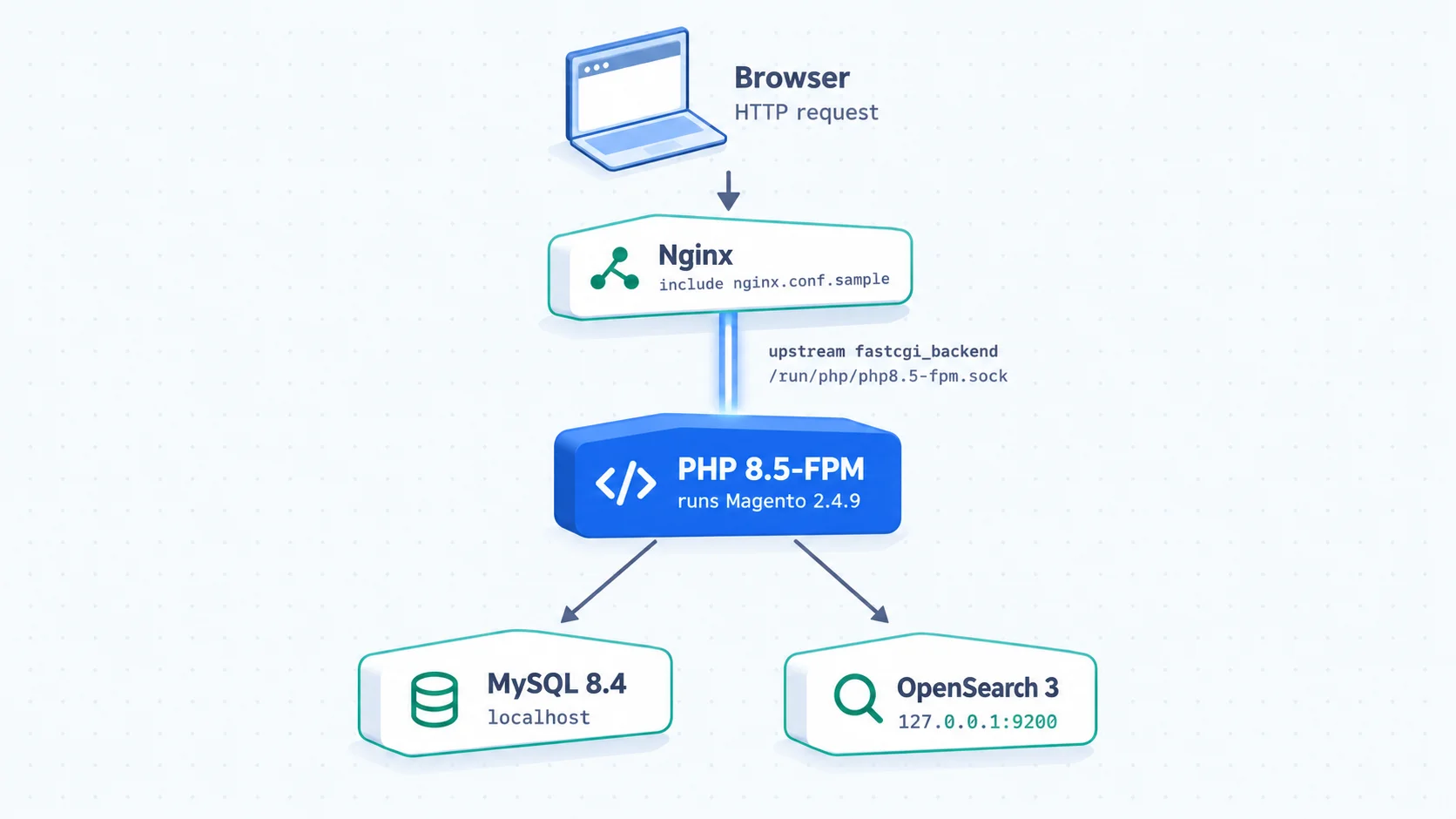
To install Magento 2 on Ubuntu with Nginx, PHP-FPM and MySQL, set up that LEMP stack plus OpenSearch first. Then download Magento with Composer and run bin/magento setup:install. Nginx serves the store by including Magento’s nginx.conf.sample file, which passes PHP requests to the PHP-FPM socket. The whole process takes 10 steps, from server prep to cron and HTTPS. Have your Commerce Marketplace access keys ready before you start, since Composer stops without them.
Quick answer
For Magento 2.4.9 with Nginx on Ubuntu, start from Ubuntu 26.04 LTS, which ships PHP 8.5 and MySQL 8.4. As of October 2026, those match Adobe’s tested versions for Magento 2.4.9, alongside OpenSearch 3, Composer 2.10 and nginx 1.30. Create a MySQL database, download Magento Open Source with your Marketplace access keys, and run bin/magento setup:install.
What you need before installing Magento 2.4.9 on Ubuntu
As of October 2026, Magento 2.4.9 is the current release line, released in May 2026. The table compares Adobe’s tested stack with what each Ubuntu LTS ships by default.
| Component | Adobe-tested for Magento 2.4.9 | Ubuntu 26.04 default | Ubuntu 24.04 default |
|---|---|---|---|
| PHP | 8.5 | 8.5 | 8.3 (unsupported) |
| MySQL | 8.4 | 8.4 | 8.0 (unsupported) |
| MariaDB | 12.3 | 11.8 (not on Adobe’s list) | 10.11 (not on Adobe’s list) |
| nginx | 1.30 | 1.28 | 1.24 |
| OpenSearch | 3 | Not packaged: use OpenSearch’s APT repository | Not packaged: use OpenSearch’s APT repository |
| Composer | 2.10 | Use the getcomposer.org installer | Use the getcomposer.org installer |
Adobe’s figures come from its system requirements page, updated September 18, 2026. Ubuntu’s come from its package archive, for example the 26.04 mariadb-server page.
Sort these out before installing anything. Each one blocks part of the Magento install.
- Get your public and private access keys from your Adobe Commerce Marketplace account. Composer needs them to download the code from repo.magento.com.
- Point a domain or local hostname at the server so the base URL resolves during install.
- Never run the install as root. Use a dedicated system user that owns the files.
Warning: Ubuntu 24.04 needs extra repositories
Ubuntu 24.04 ships PHP 8.3 and MySQL 8.0 by default. Magento 2.4.9 supports neither. Adobe ended MySQL 8.0 support on April 30, 2026. On 24.04, add a third-party PHP 8.5 repository and the official MySQL APT repository first, or start on 26.04 instead.
How to install Magento 2.4.9 on Ubuntu 26.04
Step 1: Create a Magento file owner on Ubuntu
Create the file owner first. A non-root magento user in the www-data group lets you and PHP-FPM both write to the project.
sudo apt update
sudo apt upgrade -y
sudo apt install -y curl git unzip gnupg
sudo adduser magento
sudo usermod -aG www-data magentoStep 2: Install Nginx for Magento
Ubuntu 26.04’s repository ships nginx 1.28. Adobe tests Magento 2.4.9 against nginx 1.30. Add the nginx.org stable repository if you want that exact version.
sudo apt install -y nginx
nginx -vStep 3: Install PHP 8.5-FPM and the required extensions
Composer and bin/magento run on the CLI, so install these extensions for both the CLI and FPM.
sudo apt install -y php8.5-fpm php8.5-cli php8.5-mysql php8.5-xml \
  php8.5-mbstring php8.5-intl php8.5-bcmath php8.5-gd php8.5-curl \
php8.5-zip php8.5-soap php8.5-xslNext, edit /etc/php/8.5/fpm/php.ini and /etc/php/8.5/cli/php.ini. Set these values, then restart FPM:
memory_limit = 2G
realpath_cache_size = 10M
realpath_cache_ttl = 7200
opcache.save_comments = 1
date.timezone = UTCsudo systemctl restart php8.5-fpmAdobe lists the full set in its required PHP settings page. Check it against your PHP build.
Step 4: Install MySQL 8.4 and create the database
Install MySQL server and create a dedicated database and user for Magento.
sudo apt install -y mysql-server
sudo mysqlCREATE DATABASE magento;
CREATE USER 'magento'@'localhost' IDENTIFIED BY 'use-a-strong-password';
GRANT ALL ON magento.* TO 'magento'@'localhost';
FLUSH PRIVILEGES;
EXIT;MySQL 8 enables binary logging by default. Per Adobe’s MySQL guidelines, Magento creates MySQL triggers for indexers set to Update by Schedule. With binary logging on, MySQL 8 blocks those triggers unless you add log_bin_trust_function_creators = 1 under [mysqld] in /etc/mysql/mysql.conf.d/mysqld.cnf. Restart MySQL afterwards.
Step 5: Install OpenSearch 3 for Magento catalog search
setup:install aborts if it can’t reach a search engine, so OpenSearch has to be running first. Add the 3.x APT repository as OpenSearch’s Debian install guide describes, and install the package. The OpenSearch package refuses to install without an initial admin password, set through OPENSEARCH_INITIAL_ADMIN_PASSWORD.
sudo install -m 0755 -d /etc/apt/keyrings
curl -fsSL https://artifacts.opensearch.org/publickeys/opensearch-release.pgp \
  | sudo gpg --dearmor -o /etc/apt/keyrings/opensearch.gpg
echo "deb [signed-by=/etc/apt/keyrings/opensearch.gpg] https://artifacts.opensearch.org/releases/bundle/opensearch/3.x/apt stable main" \
  | sudo tee /etc/apt/sources.list.d/opensearch-3.x.list
sudo apt update
sudo env OPENSEARCH_INITIAL_ADMIN_PASSWORD='use-a-strong-password' apt install -y opensearchOn a single server, bind OpenSearch to localhost in /etc/opensearch/opensearch.yml:
network.host: 127.0.0.1
discovery.type: single-node
plugins.security.disabled: trueOnly disable the security plugin when OpenSearch listens on 127.0.0.1 and nothing else can reach port 9200. OpenSearch recommends a Java heap of half the system RAM and defaults to 1 GB. On a server shared with PHP-FPM and MySQL, set -Xms and -Xmx in /etc/opensearch/jvm.options to the same, smaller value. Once the heap fits, enable and start the service.
sudo systemctl enable --now opensearch
curl http://127.0.0.1:9200Step 6: Install Composer 2.10
Use Composer’s official installer from getcomposer.org. It always fetches the current 2.x release, and composer --version should report 2.10 or newer.
php -r "copy('https://getcomposer.org/installer', 'composer-setup.php');"
sudo php composer-setup.php --install-dir=/usr/local/bin --filename=composer
rm composer-setup.php
composer --versionStep 7: Download Magento and set permissions
Switch to the magento user and create the project. Composer asks for your access keys: the public key is the username and the private key is the password.
sudo mkdir -p /var/www/magento
sudo chown magento:www-data /var/www/magento
sudo -u magento -i
composer create-project --repository-url=https://repo.magento.com/ \
magento/project-community-edition=2.4.9 /var/www/magentoThis installs Magento Open Source. For Adobe Commerce, use magento/project-enterprise-edition; every other step stays the same. The =2.4.9 pin installs that exact release, so check Adobe’s 2.4.9 release notes for a newer patch first.
Then give the web server group write access to the directories Magento writes to:
cd /var/www/magento
find var generated vendor pub/static pub/media app/etc -type f -exec chmod g+w {} +
find var generated vendor pub/static pub/media app/etc -type d -exec chmod g+ws {} +
chmod u+x bin/magentoStep 8: Run bin/magento setup:install
Run setup:install from the project root. Replace every placeholder value with your own.
bin/magento setup:install \
  --base-url=http://example.com/ \
  --db-host=localhost --db-name=magento \
  --db-user=magento --db-password='use-a-strong-password' \
  --admin-firstname=Admin --admin-lastname=User \
  [email protected] \
  --admin-user=admin --admin-password='use-a-strong-password' \
  --language=en_US --currency=USD --timezone=UTC --use-rewrites=1 \
--search-engine=opensearch --opensearch-host=127.0.0.1 --opensearch-port=9200The installer prints your admin URI when it finishes. Save it, since Magento generates a random path.
Step 9: Configure Nginx with Magento’s nginx.conf.sample
The project root already contains nginx.conf.sample, the Nginx rules Adobe maintains for each release. Include it from your own server block instead of writing location rules by hand. Create /etc/nginx/sites-available/magento:
upstream fastcgi_backend {
    server unix:/run/php/php8.5-fpm.sock;
}

server {
    listen 80;
    server_name example.com;
    set $MAGE_ROOT /var/www/magento;
    include /var/www/magento/nginx.conf.sample;
}sudo ln -s /etc/nginx/sites-available/magento /etc/nginx/sites-enabled/
sudo rm /etc/nginx/sites-enabled/default
sudo nginx -t
sudo systemctl reload nginxThe upstream name must stay fastcgi_backend, because the sample file references it.
Step 10: Set up cron, production mode, 2FA and HTTPS
A Magento store that loads still needs cron, production mode, admin 2FA and HTTPS before real traffic. Complete these tasks next:
- Cron: run
bin/magento cron:installas themagentouser. Without it, any indexer set to Update by Schedule never runs. - Production mode: run
bin/magento deploy:mode:set productionon live servers to compile code and deploy static assets. - Admin 2FA: the admin panel blocks login until you set up two-factor auth, so configure outgoing mail first.
- HTTPS: issue a certificate with Certbot, then update the base URLs to
https://. - Caching: add Valkey for cache and sessions, and Varnish for full-page cache, once the base install is stable.
Common Magento install errors on Nginx and how to fix them
If the install stops partway, match the symptom below to its cause.
- Composer authentication error: your Commerce Marketplace access keys are wrong or expired. Re-enter them when Composer prompts.
setup:installfails at the search step: OpenSearch isn’t running on 127.0.0.1:9200. Check it withcurl http://127.0.0.1:9200.- 502 Bad Gateway: Nginx can’t reach PHP-FPM. Make sure the upstream socket path matches
/run/php/php8.5-fpm.sock. - Blank pages with permission errors in
var/log: the web server group can’t write tovar,generatedorpub/static. Re-run the group-writechmodcommands.
Related answers
Not sure Magento 2.4.9 is right for your extensions yet? See which Magento version to run right now, or check which PHP versions each release line supports.
Which Ubuntu version is best for Magento 2.4.9?
For a new install, use Ubuntu 26.04 LTS. PHP 8.5 and MySQL 8.4 then come straight from Ubuntu’s own packages. Only OpenSearch, and optionally Nginx, need an outside repository. Get the base install working over HTTP first. Add HTTPS next, then Valkey, then Varnish, and load the storefront after each one. Building a production store? Our Magento development team can set up and harden the server for you.
Related Answers

Still need help?
Stuck partway through a Magento install?
Our Magento engineers can review your Nginx, PHP-FPM, MySQL and OpenSearch setup, or finish the install on your server.