How do I deploy Magento 2 with zero downtime?
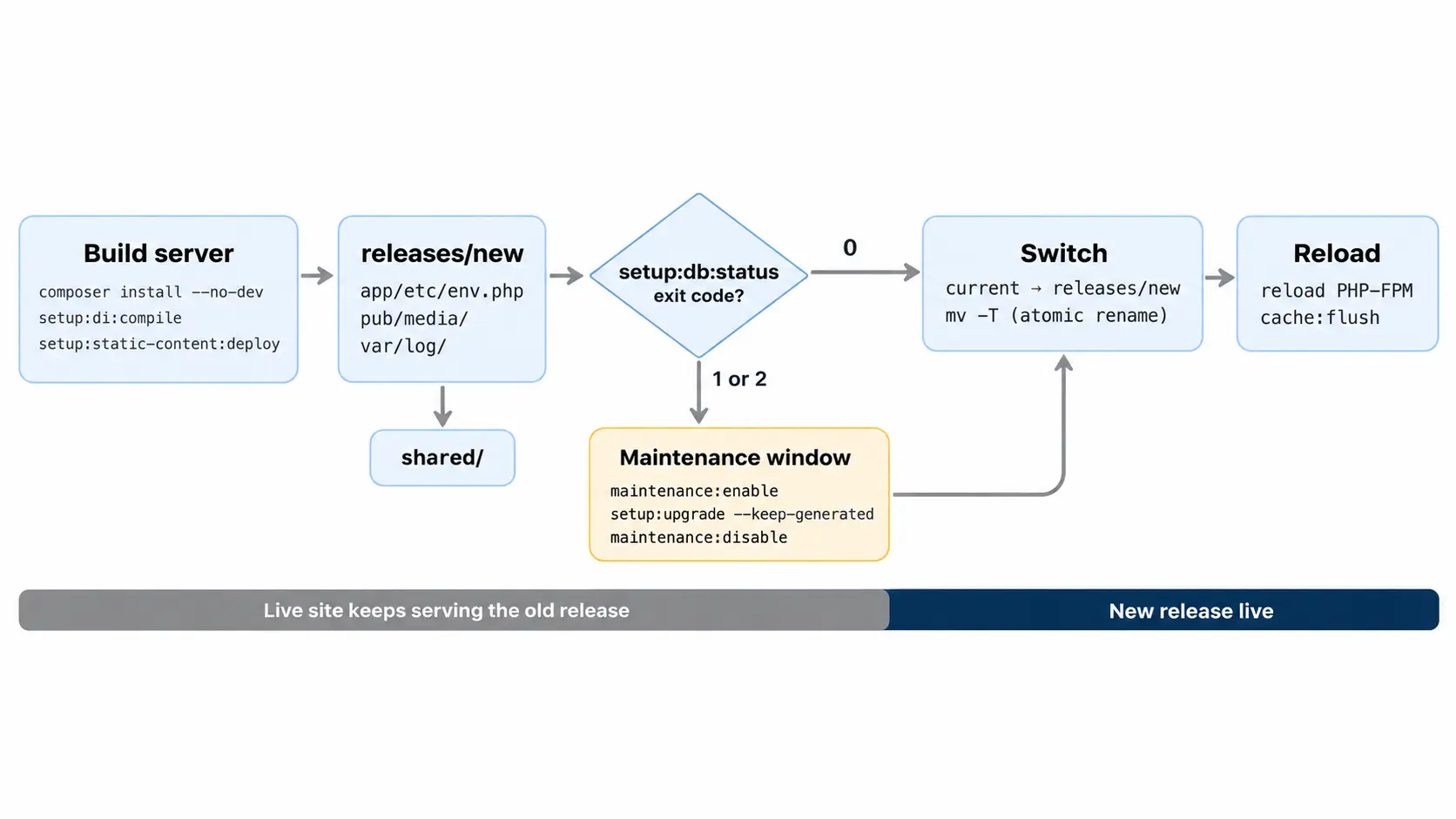
To deploy Magento 2 with zero downtime, move the heavy work off production. Run Composer, DI compilation, and static content deployment on a build server, then ship the finished build to a new release directory. A symlink swap makes that release live in one step. You only need a short maintenance window when the release changes the database. These steps cover Magento Open Source and Adobe Commerce 2.4.x on self-managed servers, with commands.
Quick answer
For a Magento 2 zero downtime deployment, build with setup:di:compile and setup:static-content:deploy on a separate server. Sync the result into a fresh releases/ directory, and going live becomes a symlink switch plus a PHP-FPM reload. Before the switch, run bin/magento setup:db:status. A non-zero exit code means the database needs updating, so plan a brief maintenance window for setup:upgrade --keep-generated.
Why standard Magento 2 deploys aren’t zero downtime
The default deploy flow runs everything inside the live codebase. setup:upgrade clears the generated/ directory, and setup:di:compile then rebuilds it from scratch. Until both finish, requests hit missing classes and fail.
Maintenance mode is the usual workaround: customers get a 503 page until compilation and static content deployment finish.
Steps for a Magento 2 zero downtime deployment
1. Commit your store configuration to config.php
The build step should not depend on the production database. It needs your scopes and themes from a file instead. On a development environment, run:
bin/magento app:config:dump scopes themes i18nCommit the updated app/etc/config.php. Adobe’s pipeline deployment documentation recommends this workflow. Dumped values become read-only in the Admin, so dumping only these sections keeps most settings editable.
2. Build the release away from production
composer install --no-dev --optimize-autoloader
bin/magento setup:di:compile
bin/magento setup:static-content:deploy -f en_US en_GBRun this in CI or on a dedicated build server. Miss a locale and that store view loads with no CSS or JS, so list every one you use. Then package the code with its generated/ and pub/static/ folders as one artifact.
3. Upload it into a new release directory
Give each deploy its own folder, for example /var/www/shop/releases/20261103-1. Files that must survive between releases live in a shared/ folder. Symlink them into each release. Typical shared paths are app/etc/env.php, pub/media/, and var/log/.
Production keeps serving the previous release while this happens.
4. Check whether a database upgrade is pending
bin/magento setup:db:status
bin/magento app:config:statusRun both from the new release directory rather than the live one. Adobe documents three exit codes for setup:db:status:
| Exit code | What it means | What to do |
|---|---|---|
| 0 | The database matches the code | Skip maintenance mode and go straight to the symlink switch |
| 1 | Some modules use code versions newer or older than the database | Run setup:upgrade --keep-generated in a maintenance window |
| 2 | setup:upgrade is required | Run setup:upgrade --keep-generated in a maintenance window |
For any non-zero code, enable maintenance mode and run bin/magento setup:upgrade --keep-generated, then disable it again. The --keep-generated flag preserves your prebuilt code, so the maintenance window covers only the database changes themselves. If app:config:status reports changes, also run bin/magento app:config:import.
5. Switch the symlink to go live
ln -sfn /var/www/shop/releases/20261103-1 /var/www/shop/current_tmp
mv -Tf /var/www/shop/current_tmp /var/www/shop/currentPoint your web server’s document root at current/pub. The mv -T rename is atomic, so no request sees a half-switched codebase. Running ln -sfn directly on the live link gives you no atomicity guarantee.
6. Reload PHP-FPM and flush caches
sudo systemctl reload php8.3-fpm
bin/magento cache:flushAdjust the service name to match your PHP version. PHP-FPM caches resolved file paths and OPcache entries. Without a reload, it can keep serving the old release after the symlink moves. A graceful reload lets in-flight requests finish first.
Restart cron and queue consumers too, since they run the old release until restarted. Keep the last three to five releases on disk. Rollback then becomes a single symlink switch.
What can still break a Magento 2 zero downtime deploy
- Database changes are the hard limit. Old code running against a new schema can throw errors, so schedule schema-changing releases for low-traffic hours.
- Running setup:upgrade without –keep-generated wipes your prebuilt code, so the store stays in maintenance mode while DI recompiles.
- A missing shared symlink for pub/media or env.php leaves the new release without product images or database credentials. Check both before every symlink switch.
- Running OPcache with validate_timestamps=0? Then PHP keeps serving the old release until you reload PHP-FPM, however long that takes.
- If setup:db:status still reports changes straight after setup:upgrade, look at your extensions. A known cause is a
db_schema.xmldeclaration that never matches the database, which a Magento core GitHub issue documents. Until you fix it, every deploy triggers maintenance mode. - A full cache flush on a busy store sends every request to PHP at once. On Varnish, warm your key category and product pages straight after the switch.
Tools that automate zero downtime deployment for Magento
You rarely need to script a Magento 2 zero downtime deployment by hand. Deployer‘s Magento 2 recipe creates a folder per release and wires up shared paths and the symlink. Capistrano users can add the capistrano-magento2 gem. On Adobe Commerce Cloud, ece-tools already splits work into build and deploy phases, so the effort there goes into tuning static content deployment.
Should you use blue-green deployment or symlinked releases?
Blue-green deployment is the main alternative to symlinked releases. It runs two identical environments behind a load balancer and switches traffic after testing. Blue-green fits multi-server, load-balanced setups, while symlinked releases suit a single server.
| Symlinked releases | Blue-green | |
|---|---|---|
| Infrastructure | One server | Two full environments plus a load balancer |
| Switch method | Atomic symlink rename | Load balancer traffic switch |
| Rollback | Repoint the symlink to the previous release | Switch traffic back to the old environment |
| Best fit | Single-server stores | Multi-server, load-balanced setups |
If you change one thing first, move compilation and static content deployment off production. On a typical store, that removes the longest wait. On very large databases, setup:upgrade can outlast both, which is why checking setup:db:status before each release matters. Symlinked releases and the database check then close the remaining gap to a true Magento 2 zero downtime deployment. If you want the pipeline built and tested against your own store, our Magento development team can set it up.
Related Answers

Still need help?
Talk to our Magento experts
Stuck mid-setup or still deploying behind a maintenance page? We can review your current deploy flow and plan the move to symlinked, zero downtime releases.