How do I fix SSL pending or SSL unavailable in Shopify?
To fix SSL pending in Shopify, correct any DNS problems and then allow up to 48 hours for the certificate to be issued. To fix SSL unavailable, find the DNS, CAA, DNSSEC, or Cloudflare setting that is blocking the certificate and correct it. Work through the five checks below in order before contacting Shopify Support.
Quick answer
Shopify SSL pending means the certificate is still being issued, which can take up to 48 hours after a DNS change. SSL unavailable means Shopify could not issue one. Check these in order: your domain status and A, AAAA, and www CNAME records, any CAA records (they must allow letsencrypt.org, pki.goog, and ssl.com), DNSSEC, and Cloudflare (set records to DNS only), then allow up to 48 hours. If the status has not cleared after that, contact Shopify Support.
What do SSL pending and SSL unavailable mean in Shopify?
TLS is the modern protocol that people still call SSL, and Shopify’s admin may label the status either way. Shopify provides a free certificate for connected domains, so you generally do not need to buy one.
SSL pending appears while the certificate is being issued. According to Shopify’s domain troubleshooting guide, this can take up to 48 hours after you connect a domain. SSL unavailable appears when Shopify cannot provision a certificate, and visitors may see a “Your connection is unsecure” message.
How to fix SSL pending or SSL unavailable in Shopify
In your Shopify admin, open Settings, then Domains, and select the affected domain. Read the exact notification, such as a Needs Attention badge, because each one points to a specific cause. Steps 2 to 4 apply mainly to third-party domains.
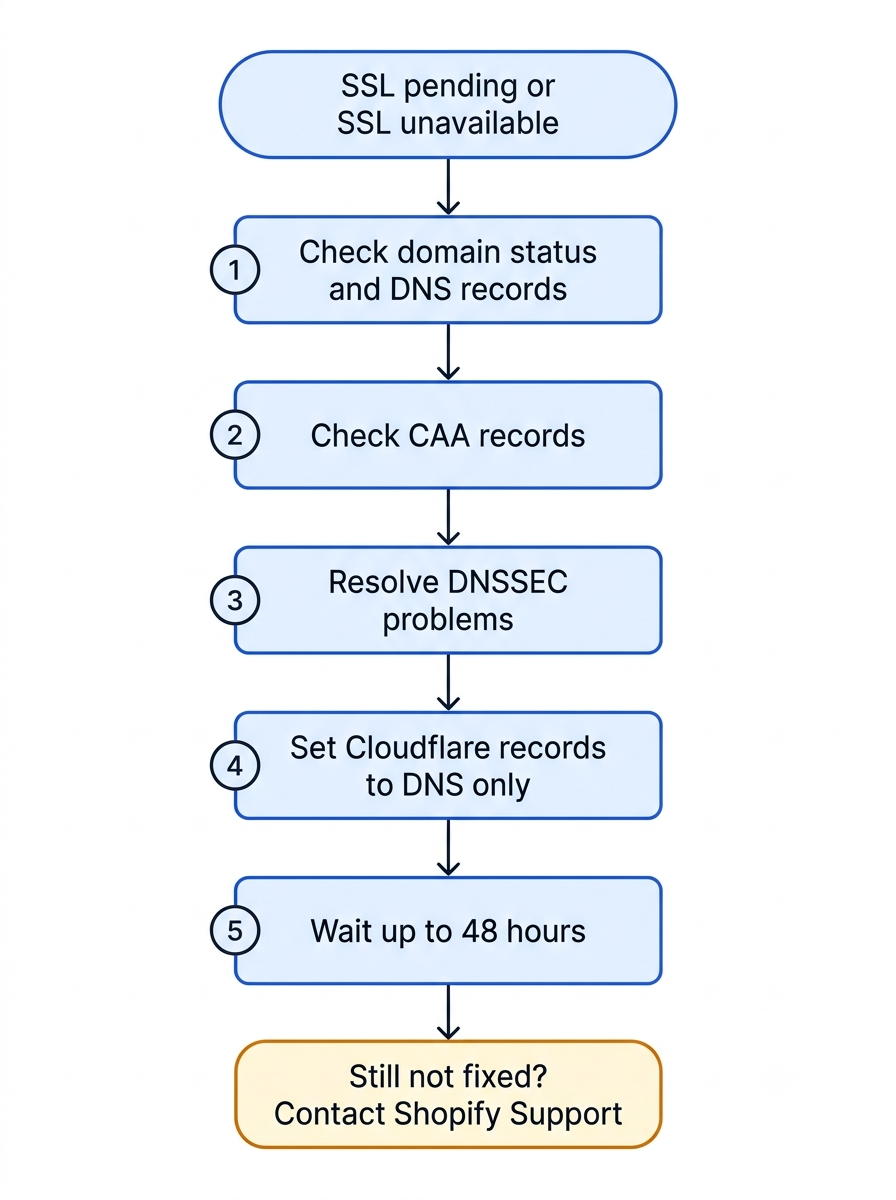
1. Check the domain status and DNS records
First confirm the domain is active, not expired or suspended. Then set these values at the provider that manages your DNS, which may be your registrar or a separate DNS host:
- A record for the root domain, usually shown as
@:23.227.38.65 - AAAA record for the root domain:
2620:0127:f00f:5:: - www CNAME record:
shops.myshopify.com., including the final period
Keep one A record and one AAAA record for the root hostname, plus one www CNAME pointing to Shopify. An A record that Shopify generated with a different last number, such as 23.227.38.68, is still valid. Remove conflicting records for those hostnames, including old records from a previous host and any wildcard record (*.example.com) pointing to Shopify. Leave unrelated subdomain, email, and verification records alone.
2. Check your CAA records
CAA records control which certificate authorities may issue certificates for your domain. If you have any, they must permit letsencrypt.org, pki.goog, and ssl.com. Shopify’s guide says a record whose value is only a semicolon blocks every authority. A semicolon that separates a valid authority from a parameter, such as pki.goog; cansignhttpexchanges=yes, does not. Restrictive parameters such as accounturi can still block issuance. Ask your DNS provider to review the records, and treat removal as a last resort because other services may rely on them. Find exact values in Shopify’s secure connections guide.
3. Resolve any DNSSEC problem
A broken DNSSEC setup can block certificate issuance. For a third-party domain, Shopify’s guide describes turning DNSSEC off at your provider as the standard fix. If you need to keep it, ask your provider to repair the setup instead. DNSSEC records can stay published after you switch the setting off, so ask the provider to check for leftovers if the warning remains.
4. Set Cloudflare records to DNS only
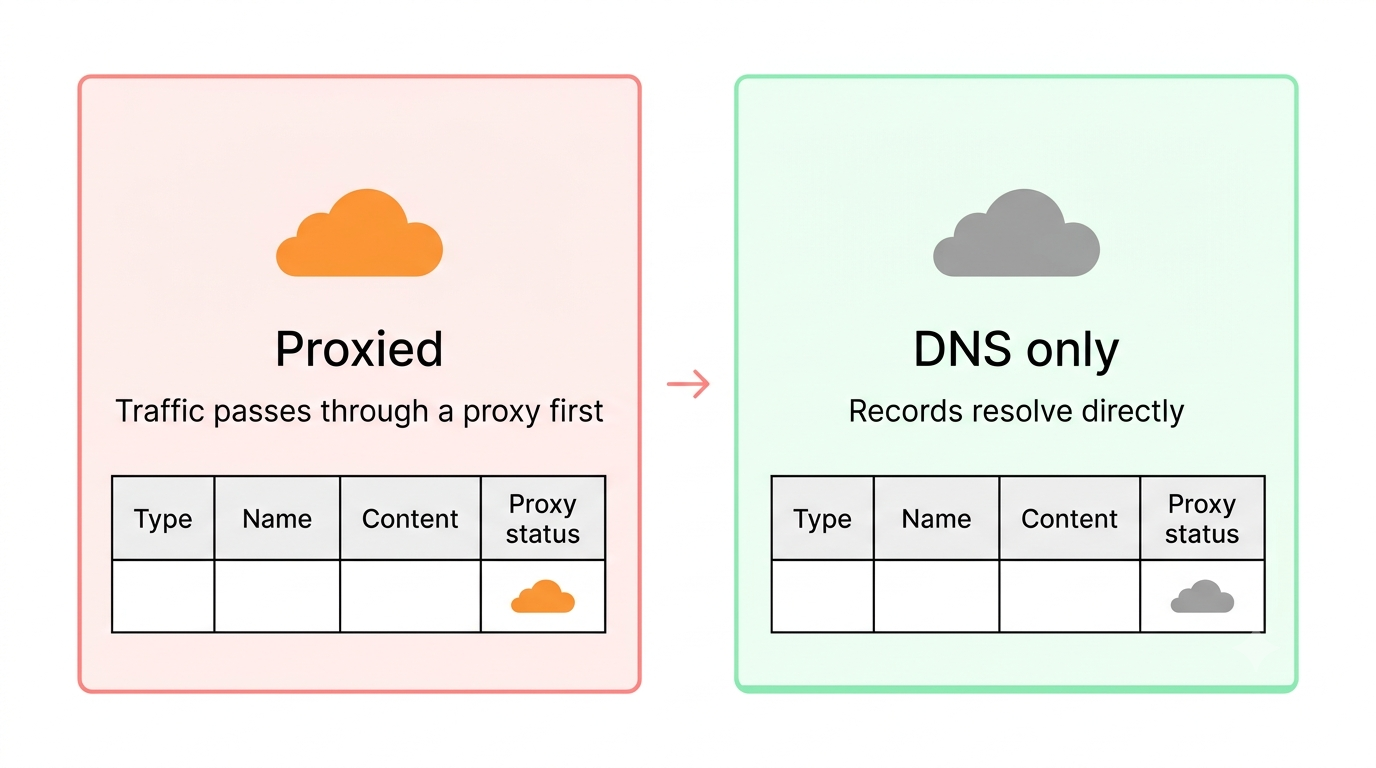
Shopify does not support the Cloudflare proxy or Orange-to-Orange setups. A proxy can interfere with the HTTP challenges Shopify uses to verify your domain. Keep Cloudflare for DNS if every record pointing to Shopify is set to DNS only. Some providers enable proxying by default, so check even if you never configured it.
5. Allow up to 48 hours after the configuration is correct
DNS updates can take up to 48 hours to propagate, and the pending status shows meanwhile. If your records are already correct, waiting is the fix. If Shopify shows a specific warning, resolve it first, because waiting will not repair a wrong record or a blocked certificate authority. After that, avoid unnecessary extra DNS changes, which Shopify’s guide says can reset the timer.
Before you edit any DNS record
Copy your current records first. If a duplicate A record stays live, browsers pick one at random, so some visitors reach your store and others do not. Change only the records named above, and leave MX and TXT records for email and domain verification alone.
What if Shopify manages your domain?
Shopify-managed domains permit Google, Let’s Encrypt, and SSL.com, so you normally do not need to configure CAA permissions yourself. Shopify does not support DNSSEC. If a domain transferred to Shopify retains unsupported DNSSEC records, contact Shopify Support for help removing them.
When should you contact Shopify Support?
Contact Shopify Support when the status is still pending or unavailable 48 hours after your last DNS change and all five checks pass. First test another up-to-date browser and device, since Shopify lists Android 7.0 or lower and browsers from before 2010 as causes of the unsecure message. If only certain pages warn, check for hard-coded http:// links. Shopify Support cannot sign in to your external provider, so your DNS provider makes record changes. Send these details:
- The exact domain name.
- The exact error text from your admin or browser.
- Screenshots of your Shopify Domains page and your provider’s DNS records.
- Your domain provider’s name and any recent DNS changes.
SSL pending needs correct DNS records and patience. If the status turns to SSL unavailable, the five checks above cover the causes Shopify documents. Fix them in order, wait the full 48 hours, then escalate. If DNS edits are outside your comfort zone, our Shopify development team can review the setup with you.
Related Answers

Still need help?
Still stuck on SSL pending or unavailable in Shopify?
If your domain is still stuck after the 48-hour wait, we’re happy to walk through your DNS, CAA, and DNSSEC setup and what needs to change.