How do I set my business address and contact details in Shopify?
Shopify splits your business address and contact details across three separate settings, and each one serves a different purpose. Store contact details control what customers see on your storefront and policy pages. Business details cover the legal entity Shopify uses for tax and verification. Billing address controls what appears on your Shopify subscription invoices. Changing one does not update the others, so it’s worth knowing which one you actually need before you start editing.
Quick answer
Update customer-facing details from Settings, then General, then Store contact details. Update your legal business entity from Settings, then General, then Business details. Update the address on your Shopify invoices from Settings, then Billing, then Billing profile. If Shopify Payments, Balance, Capital, or Credit are active on your store, you need to deactivate all of them before you can change your business country in Business details.
1. Store contact details (what customers see)
This is your store name, email, phone number, and public address. It appears on your website, policy pages, order emails, and packing slips.
Update your store name, email, and phone
Desktop:
- Go to Settings, then General.
- In the Store contact details section, click your store name.
- Edit your store name, store email, and store phone number.
- Click Save.
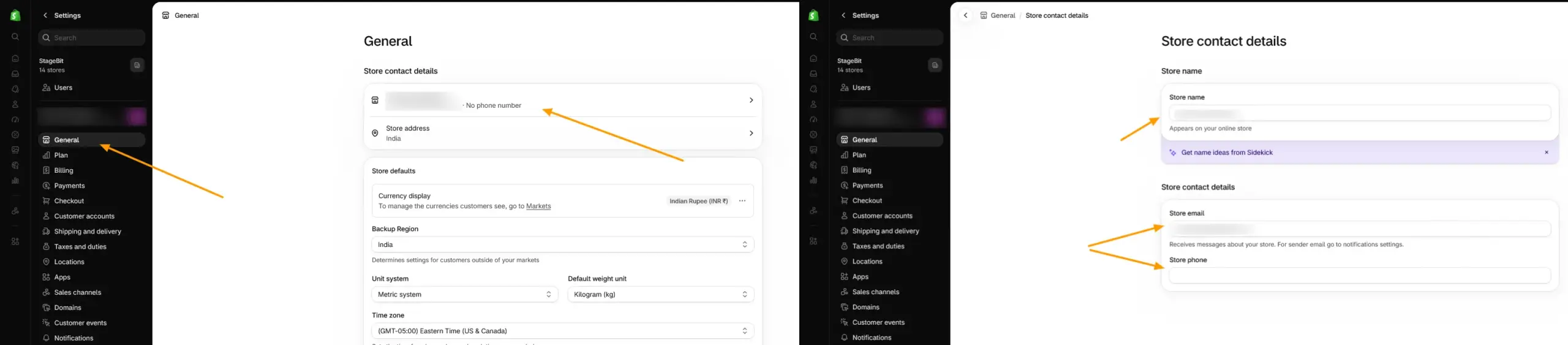
Mobile: open the Shopify app, tap Menu, then Settings, then General, then your store name under Store contact details, edit the fields, and tap the checkmark to save.
Update your public store address
- From Settings, then General, in the Store contact details section, click the arrow next to Store address.
- Enter your company name and address.
- Click Save.
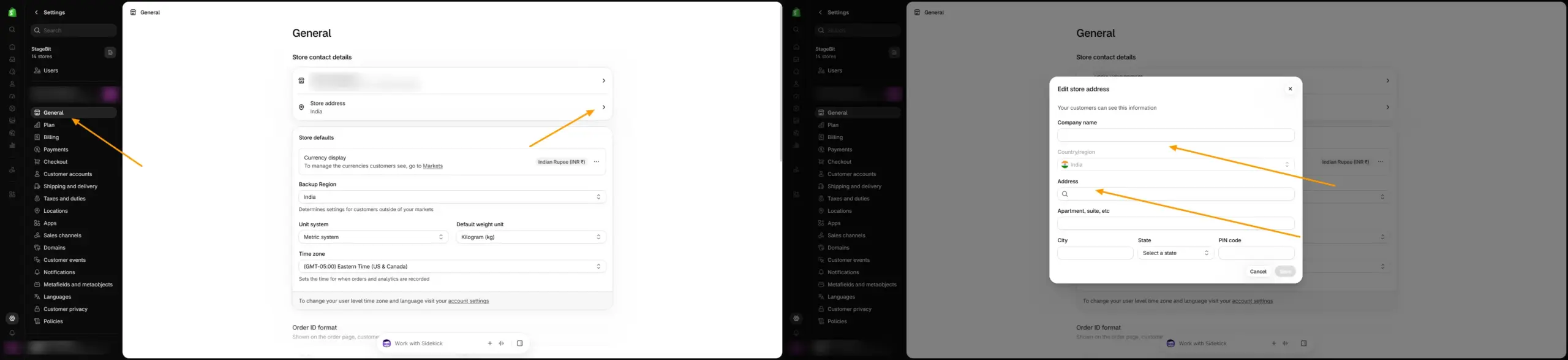
This address must be in the same country as your business entity. Changing your store’s country can affect subscription fees, tax obligations, and which Shopify features you can access, according to Shopify’s help documentation.
2. Billing address (what’s on your Shopify invoices)
Your billing address is separate from your store address, and the company name on your Shopify bill is separate from the company name customers see. Changing your store address does not touch this.
- Go to Settings, then Billing.
- Select the store you want to review, then click Billing profile (this may show as “Edit billing profile” depending on your account type).
- In the Address and currency section, click Manage next to the billing address.
- Select the business entity you want to bill under.
- Update the company name and address, then click Save.
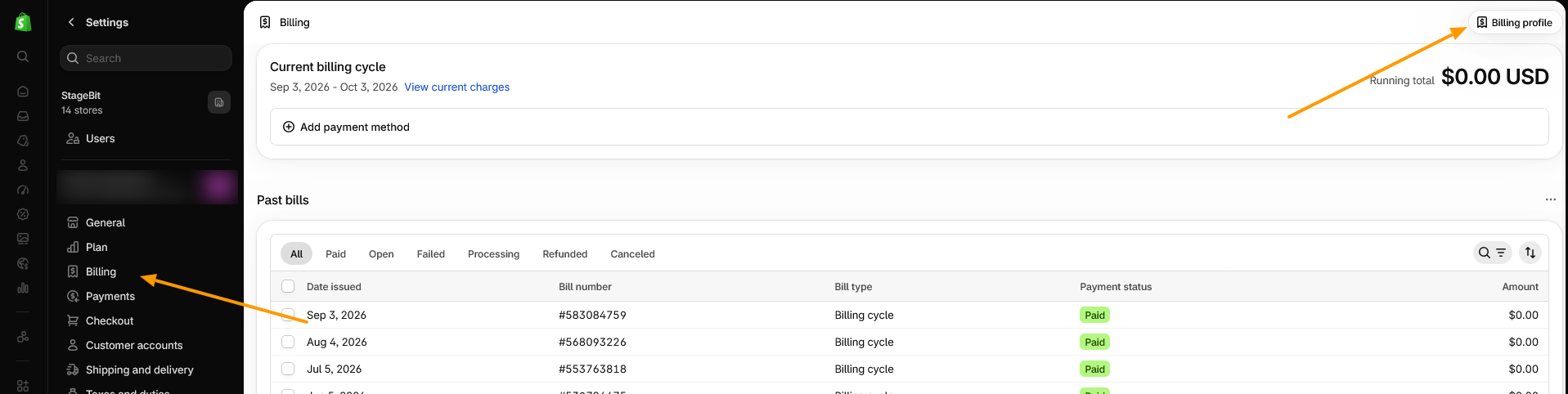
The country on your billing address has to match the country of one of your active business entities. It also affects the billing currency and tax charges applied to your Shopify subscription itself, not to your customer transactions.
3. Business details (your legal entity)
This is the legal business information Shopify uses for tax reporting, billing, and identity verification, things like your business country, business type, phone number, business representatives, and email address.
- Go to Settings, then General.
- Open the Business details section.
- Review or edit your business country, business type, and representative details.
- Save your changes.
Your legal business name is separate from your store name. Changing one doesn’t change the other. If Shopify needs to verify your identity or business, for example when you enable Shopify Payments, it typically requests documents like a government-issued photo ID or proof of business registration separately, rather than through fields on this settings page.
Before you change this
If your store has Shopify Payments, Shopify Balance, Shopify Capital, or Shopify Credit active, Shopify requires you to deactivate all of them before you can change your business country, according to Shopify’s setup documentation. If you use Shopify Payments, changing the business name on file also requires contacting Shopify Support directly instead of editing it yourself.
Which setting do you actually need?
- Customers need to see a different address: update Store contact details.
- Your Shopify invoice needs a different company name or address: update the Billing profile.
- Your registered business has changed: update Business details.
Get store contact details and your public store address right first, since customers see those immediately. Business details and billing address matter less often, but they’re the two people get stuck on, usually because of the financial-services deactivation step or a mismatch between the billing entity and the store’s country. If you’re setting all of this up as part of a new store build, our Shopify development team can walk through all three together so nothing gets missed before launch.
Related Answers

Still need help?
Not sure which Shopify address setting you need?
If you're untangling store details, business verification, or billing information for a new or growing store, we're happy to walk through it with you.