How do I set my store currency and change it safely?
Your store currency is the currency used to price your products, display totals to customers, and generate reports in Shopify. You choose it when setting up your store, and it can be changed later, but changing it after your store has sales requires care to avoid pricing, reporting, and tax problems.
Quick Answer
Go to Settings, then General, then Store defaults, then Currency display, and select Change store currency. Do this before your first sale if you can. Switching currency never converts your prices, it only swaps the symbol, so a product priced at 20 will show as 20 in the new currency until you manually update it. Back up your pricing and discount codes first, resolve any pending payments, and confirm your payment provider supports the new currency before you save.
Step 1: Set your store currency during setup
When you first create your Shopify store, you select your business location and store currency. Choose the currency that matches your main market, since this affects how prices, taxes, and payment methods work from the start.
Step 2: Understand the impact before changing currency
Before changing your store currency later, review the following:
- Product prices and discount amounts change to the new currency, but the numeric value stays the same. A $20 USD product becomes a $20 CAD product, not a converted equivalent.
- Shipping rates don’t update automatically. You’ll need to delete and recreate them.
- Gift cards issued in the old currency may stop working if that currency is no longer available at checkout.
- Apps with currency requirements may stop working correctly.
- Reports and pending orders can be affected, Shopify converts historical report data automatically, but that conversion isn’t guaranteed to be fully accurate.
- Changing your store currency also changes your store’s primary market, which can affect your existing Markets configuration.
- If using PayPal or another third-party payment provider, confirm the new currency is supported.
Step 3: Prepare your store before changing currency
- Complete any pending payments.
- Export your products and discount codes to CSV for backup, Shopify doesn’t keep a record of your old prices once you switch.
- Check all installed apps for compatibility with the new currency.
- Confirm your payment provider supports the new currency, or deactivate it before switching.
Step 4: Change your store currency safely
From your Shopify admin:
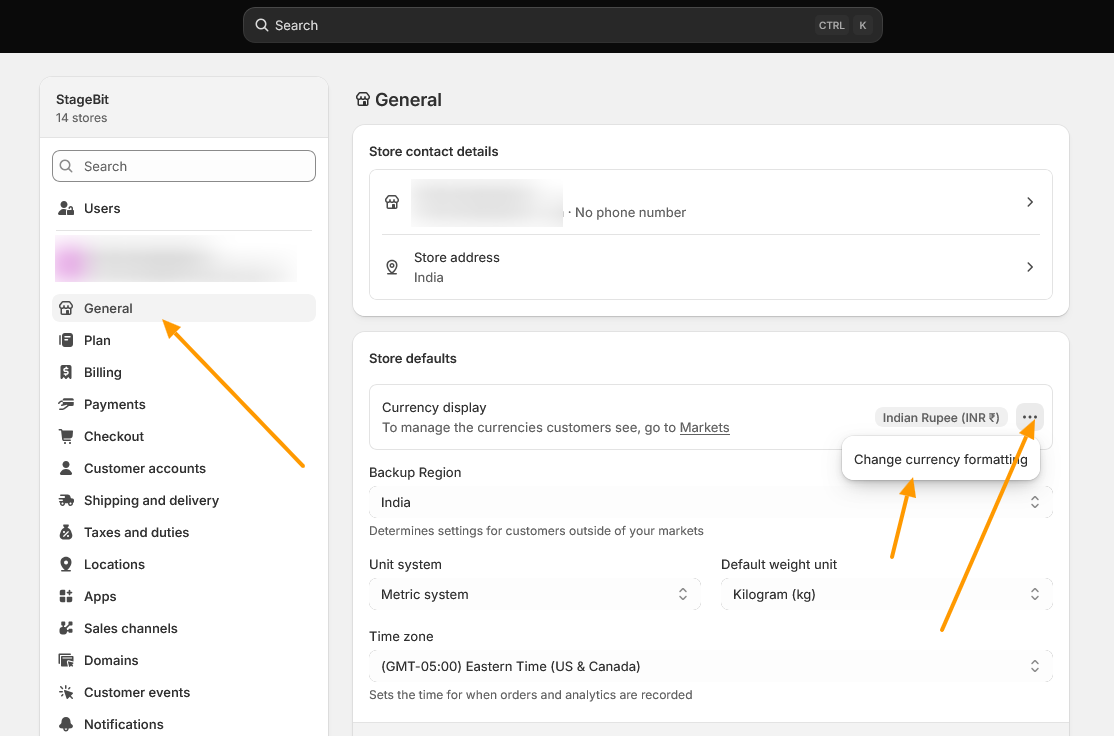
- Go to Settings > General.
- Scroll to the Store defaults section.
- Under Currency display, click the three-dot menu.
Step 5: Update store settings after changing currency
- Review and update product prices to reflect your intended values in the new currency.
- Adjust discount codes to align with the new currency.
- Delete existing shipping rates and re-enter them manually.
- Reissue gift cards to replace old balances that may no longer be redeemable.
- Check your Shopify Markets setup, since your primary market changed along with your store currency.
Changing your store currency safely comes down to preparation more than the click itself, the steps take under a minute, the pricing, reporting, and market cleanup afterward are what actually protect your store. Review any legal or tax implications with an accountant first, particularly if the new currency no longer matches the currency your business is registered in. If you’re not sure which setting you actually need, or your store has order history and the self-service option isn’t showing up, our Shopify team can help scope the right fix.
Related Answers

Still need help?
Ran into the currency lock, or not sure which setting you actually need?
Our Shopify team handles currency changes, locked-field Support requests, and Markets setups for local pricing, tell us what you're trying to do and we'll tell you the fastest safe path.