How do I set my Shopify domain as the primary URL and redirect all others?
Your Shopify online store has one primary domain, which is the address customers see when they browse it. You set it in Settings > Domains once your custom domain shows as Connected. Shopify turns the previous primary into a redirect domain, and other redirect domains send visitors to the new primary. Alias and market domains need their own check, covered below. Switching also changes the URL every visitor and search engine sees.
If by “Shopify domain” you mean the free your-store-name.myshopify.com address, that is your primary by default. Most merchants asking want a custom domain such as example.com instead, and the steps below cover that.
Quick answer
Add your custom domain in Settings > Domains and wait until its status reads Connected. Open that domain, click Change in the Type row, choose Primary domain, and save. The previous primary becomes a redirect domain, and other redirect domains send visitors to the new one. Afterward, check any alias or market domains separately, because they do not follow the same rule.
Before you start
Your custom domain must be added to Shopify and show a Connected status on the Domains page. According to Shopify’s documentation, connection can take up to 48 hours.
Leave your old domains connected to the store. The redirects run through Shopify, so a domain you disconnect can no longer send visitors to the new one. The same logic applies to any extra domain you never connected. Connect it first if you want Shopify to handle it.
Multi-market stores: check this first
If the domain you want to make primary shows Market domain for followed by a market name, Shopify displays View market settings instead of the option to change its type. First assign a different domain or subfolder to that market, then come back.
One market always uses your primary domain, so switching the primary changes that market’s URL. Subfolder markets follow it: example.com/fr-ca becomes your new domain plus /fr-ca.
How to set your primary domain in Shopify
- Open the Domains page. From your Shopify admin, go to Settings > Domains.
- Select your custom domain. Click the domain you want customers to see, such as www.example.com. If it is already your primary domain, you are done.
- Change its type. In the Type row, click Change, then select Primary domain in the dialog.
- Save. Click Change domain type. The previous primary domain becomes a redirect domain and stays connected to your store.
If you connected both www.example.com and example.com, they appear as separate entries. Make one primary and confirm the other redirects to it.
How to confirm every other domain redirects
When you change your primary domain, Shopify turns the previous primary into a redirect domain that stays connected. Other redirect domains for the same online store send visitors to the new primary, including the default myshopify.com address. Not every domain is a redirect domain, so check each type. Shopify’s Alias domain type is the main exception.
- A redirect domain sends visitors to the primary domain.
- An alias domain displays the storefront under its own address instead of redirecting by default. If Markets automatic redirection is on and a market uses a dedicated domain, visitors to the alias go to that market’s domain on their first visit.
- A market domain serves one market. Shopify does not let you change the type of a domain that a market uses as its own, and separate market domains may be intentional.
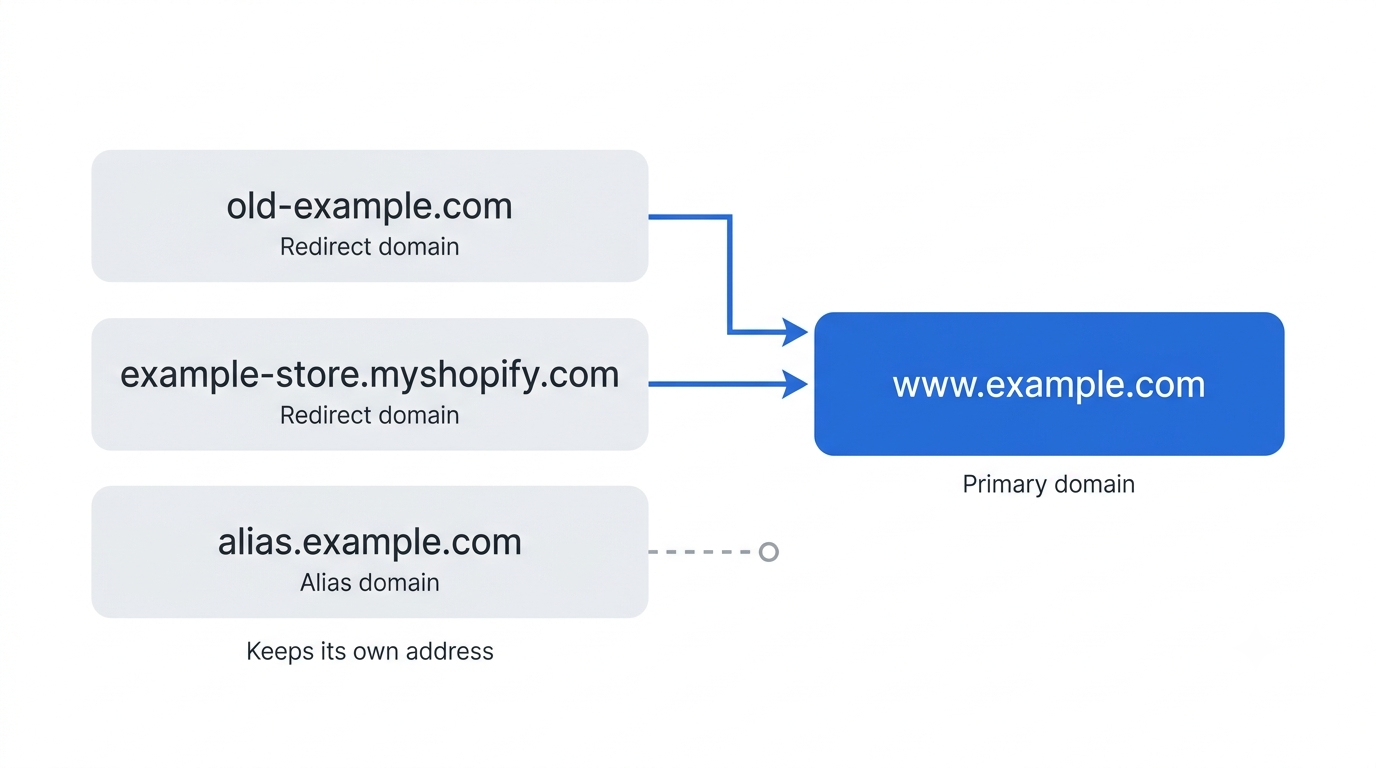
Then check each domain in practice:
- Open Settings > Domains and click each domain other than your primary.
- For each domain meant to redirect, confirm its target is this online store and its type is a redirect.
- If a domain meant to redirect shows as Alias, change its domain type so it redirects, then retest it.
- In a private browser window, type each old address and confirm it lands on your primary domain.
- After switching, test important product, collection, and content URLs on the old domain to confirm that visitors reach the corresponding pages.
If a newly added domain is not working yet, check its status on the Domains page first. It can take up to 48 hours to show Connected.
Do you need a URL redirect for every page?
No. You do not need to create URL redirects under Content > Menus just to send a connected domain to your primary domain. Shopify manages domain redirects in Settings > Domains.
The URL redirects option under Content > Menus does a different job. It sends visitors from an old page path on your store to a new one, such as /products/old-name to /products/new-name. Use it when a product, collection, or page URL changes. A domain redirect does not replace checking individual pages, so run the URL test above.
What to check if the store already gets organic traffic
A new primary domain changes the URL of every page search engines have indexed. Before you switch, export your top landing pages from analytics or Search Console. After the switch, retest those pages on the old domain.
Shopify also cautions that search engines may rank pages lower when several domains show the same content. That is the main reason not to leave old domains on Alias. For a store with meaningful search traffic, our Shopify development team can plan the switch and verify the redirects.
Set the primary domain once your custom domain shows Connected, and keep every old domain attached. The verification pass is where your traffic gets protected: every old address that should redirect needs to land on the right page, and alias and market domains need to behave as you intended.
Related Answers

Still need help?
Questions about switching your Shopify primary domain?
If you’re weighing a domain switch on a live store, we’re happy to walk through your redirects, alias domains, and what to monitor afterward