How do I close, pause, or reopen my Shopify store?
Shopify treats closing and pausing as two different actions, and picking the wrong one costs you more than it should. Pausing puts your store on the Pause and Build plan, which keeps your admin access but turns off checkout, so you keep the store and pay a reduced fee. Closing cancels your subscription entirely, known in Shopify’s own interface as deactivating your store, which ends your billing cycle and locks you out of the admin until you reopen it. You manage both from the same place, Settings, then Plan, though they lead to very different outcomes.
Quick answer
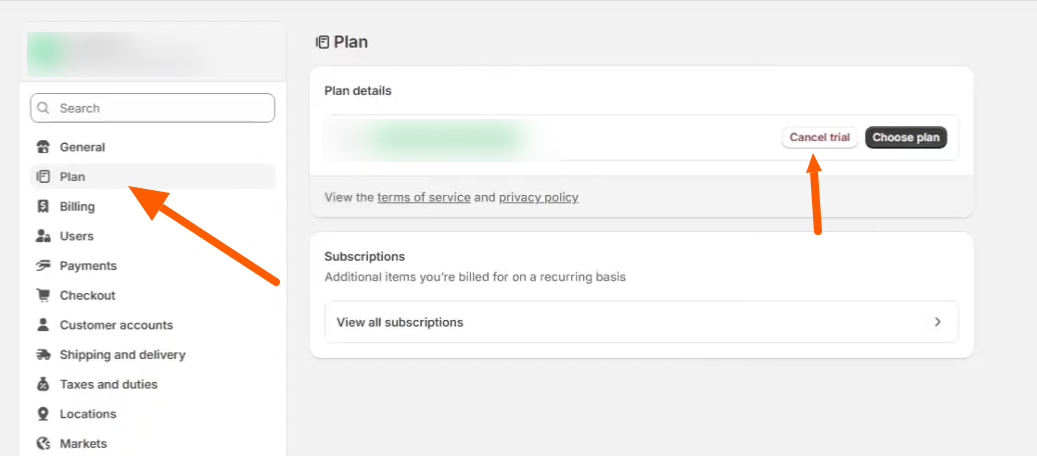
Go to Settings, then Plan, and click Cancel plan if you’re on a paid plan, or Cancel trial if you’re still in your free trial. Either click opens a review screen where you can switch to Pause and Build to keep admin access at a reduced monthly fee with checkout disabled, start a new store, or continue to deactivate completely. To reopen a paused store, go back to Settings, then Plan, and choose a new plan. To reopen a deactivated store, log in and click the Re-open button, then choose a plan and enter payment details. Shopify guarantees your store data for 2 years after deactivation.
Pause your store with Pause and Build
Pause and Build keeps your store running behind the scenes at a reduced cost while turning off the ability for customers to buy anything. Customers can still browse your products, but checkout, POS, discounts, abandoned checkout recovery, gift cards, and integrations like Facebook and Google are all switched off, per Shopify’s pause documentation.
Steps to pause your store
- Log in as the store owner.
- From your Shopify admin, go to Settings, then Plan.
- Click Cancel plan.
- Enter your password when prompted.
- Click Cancel plan again to view all available options.
- Select the Pause and Build plan.
- Review the plan details, then click Switch to Pause and build.
To use Pause and Build, you need to be the store owner, past your free trial, and on a paid plan. It’s not available on Shopify Plus, and Shopify’s documentation notes it may not appear as an option if you’re still in your trial. The same review screen also offers a Start new store option, which deactivates your current store and begins a new trial, worth knowing about even though it’s outside what this guide covers. Screenshots of the current interface show the fee as $9 USD per month, though Shopify hasn’t published this figure directly in its help documentation and it can vary by region, so confirm the exact amount in your own admin before publishing.
Close your store completely
Closing your store cancels your Shopify subscription and deactivates the store at the end of your current billing cycle. Shopify automatically uninstalls all apps at that point and bills any pending app usage charges, transaction fees, or shipping label charges before the store closes.
Steps to close your store
- From your Shopify admin, go to Settings, then Plan.
- Click Cancel plan if you’re on a paid plan, or Cancel trial if you’re still in your free trial.
- Review the options to downgrade, switch to Pause and Build, or start a new store, if any of these apply to your store.
- Review your Shopify-managed domains and any pending charges, then select Cancel my plan and uninstall all apps, and click Continue.
- Select a reason for closing, and optionally add a comment.
- Click Continue.
- Optional: select Save payment details to reopen your store faster.
- Enter your password, then click Cancel plan or Cancel trial again to confirm.
Check these before you close your store
Export your store data as CSV files and download a backup of any purchased theme first, since Shopify licenses themes only to the store you originally bought them for. Review any Shopify-managed domains to avoid renewal charges. If you bought your domain through Shopify and want to keep it, you can transfer it to a third-party domain provider before or after you deactivate. Cancel third-party apps billed outside Shopify separately, since deactivating your store does not cancel those. Custom domains disconnect on deactivation, so reconnect them if you reopen. If you use Shopify Payments, pending payouts still process after deactivation, and customers can still file chargebacks against past orders. You need to reactivate the store to respond to a chargeback through the admin, per Shopify’s deactivation documentation. If your store is on Shopify Plus, you cannot deactivate it yourself. Contact Shopify Plus Support instead.
Reopen a paused or closed store
Reopening works differently depending on which state your store is in.
Reopening a paused store
- Log in as the store owner.
- Go to Settings, then Plan.
- Click Pick a plan, then Choose plan for the plan you want.
- Review the details, then subscribe.
If you set a password on your storefront while paused, remove it once you reopen so customers can access the store normally.
Reopening a closed store
- Log in to your store as the store owner.
- Click Re-open followed by your store’s myshopify.com address.
- Review the available plans and choose one.
- Enter your payment information.
- Click Subscribe to reactivate the store.
Shopify guarantees your store data for 2 years after deactivation, so reopening within that window brings the store back without rebuilding it. Custom domains disconnect during deactivation, so reconnect them from Settings, then Domains after reactivating. If you are reopening as part of a bigger rebuild, our Shopify development team can handle theme, app, and migration work during that window rather than after you are already live again.
Pausing and closing solve different problems. Use Pause and Build if you plan to come back and want to keep your setup intact. Use full deactivation only if you are genuinely done, since it uninstalls your apps and disconnects your domains. Either way, export your data and back up your theme before you make the change, not after.
Related Answers

Still need help?
Not sure whether to pause or close your store?
If you're weighing a temporary break against shutting down for good, we're happy to walk through what each option means for your apps, domains, and data, and help with the rebuild if you're using the pause window to make changes.