Running a Shopware 6 store, first and foremost, requires regular updates, plugin installations, and ongoing system maintenance. Because of this, it’s important to prevent customers from accessing the storefront during these activities, so that you can avoid errors, broken pages, or incomplete purchases. That’s exactly where Maintenance Mode comes in.
In this article, we’ll explain:
- What maintenance mode is
- How to enable maintenance mode in Shopware 6
- Best practices for using maintenance mode effectively
What Is Maintenance Mode in Shopware 6?
Simply put, maintenance mode is a built-in Shopware 6 feature that temporarily disables the storefront for visitors and, instead, displays a maintenance message. In other words, it acts as a buffer between your ongoing backend work and your customers’ shopping experience.
While maintenance mode is active, several things happen at once:
- Customers cannot browse products
- The checkout process is disabled
- Admin users can still access the backend
- Developers can safely perform updates or fixes
As a result, this ensures a smooth and professional experience for your customers, even while changes are happening behind the scenes.
One more thing worth knowing: Shopware’s maintenance mode correctly serves an HTTP 503 status code instead of a normal 200 while it’s active. This tells search engines the outage is temporary, so your pages won’t get dropped from the index if maintenance runs for a few hours. If you’re planning downtime longer than a day or so, it’s still worth adding a Retry-After header or checking with your developer, since search engines can start treating a very long 503 as a sign the page is genuinely gone.

Enable Maintenance Mode via Admin Panel
Fortunately, Shopware provides a simple and safe method to enable maintenance mode directly from the Admin Panel. Therefore, even non-technical users can manage it easily.
Step 1: Log in to the Shopware Admin Panel
To begin, log in to your Shopware 6 Administration using an admin account.
Next, navigate to: Administration → Sales Channels. Once there, you will see a list of all available sales channels.
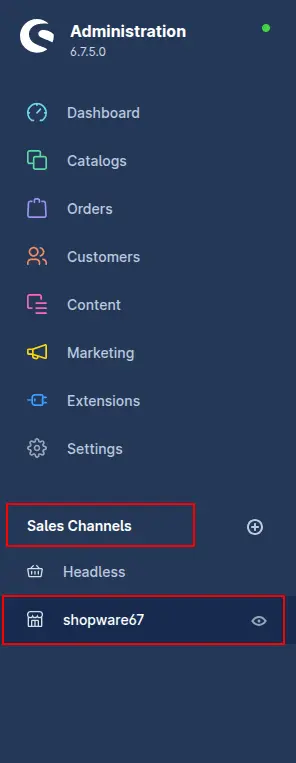
Step 2: Select the Desired Sales Channel
After that, click on the sales channel for which you want to enable maintenance mode. This will typically be the Storefront sales channel. Then, follow these steps in order:
- Scroll down to the bottom of the sales channel settings page
- Locate the “Maintenance mode” section
- Toggle the switch to enable maintenance mode
- Finally, click Save to apply the changes
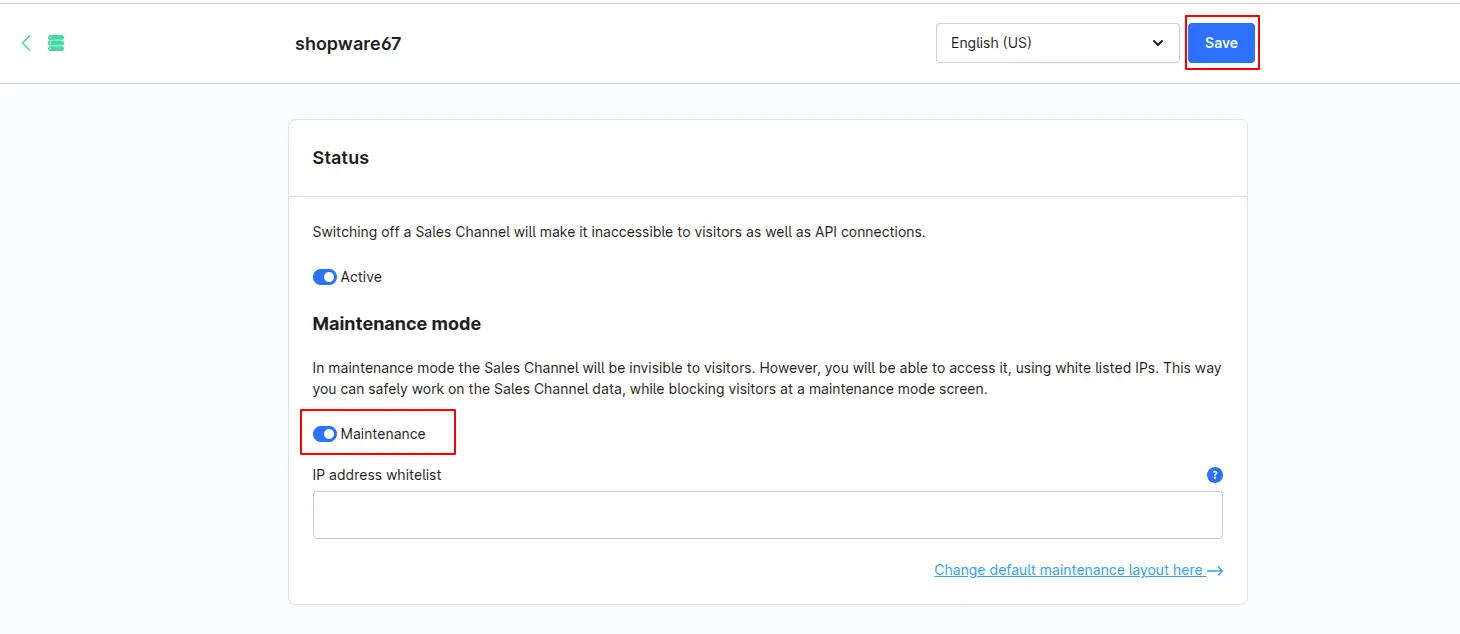
Once saved, the selected storefront will immediately be put into maintenance mode.
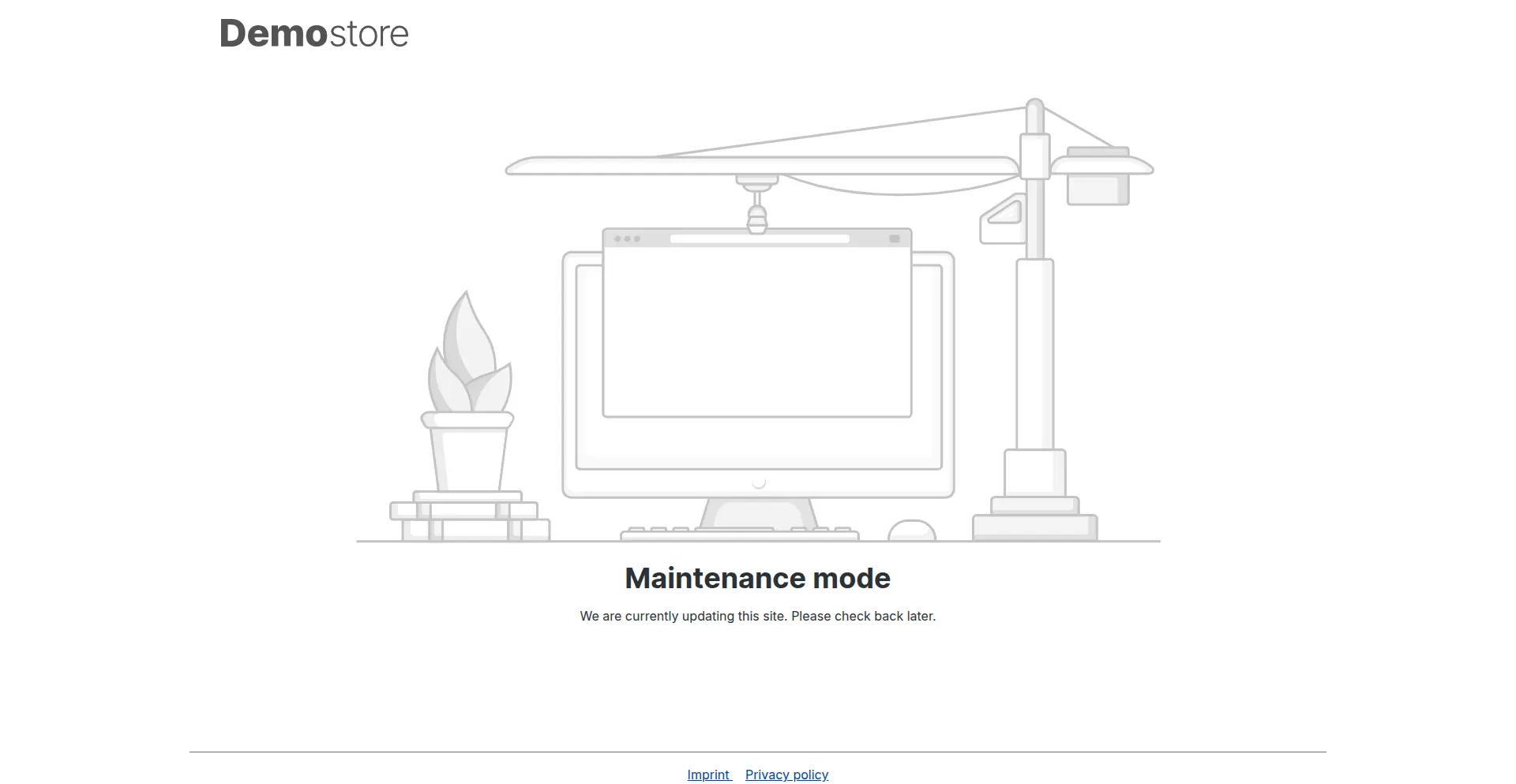
Allow Access for Specific IP Addresses
In addition to enabling maintenance mode, Shopware also allows you to allowlist specific IP addresses. This means developers or administrators can still view the storefront while it remains hidden from customers.
Where to add IPs:
Admin → Settings → System → Maintenance → Allowed IPs
This is especially helpful when:
- Testing new features
- Verifying frontend changes
- Debugging issues live

Best practices while using maintenance mode
- Enable maintenance during low-traffic hours
- Display a friendly maintenance message
- Inform users via email or banner if downtime is planned
- Always test after disabling maintenance
- Clear cache after updates, since a stale cache can keep showing the maintenance page (or old content) even after you’ve switched maintenance mode back off
Conclusion
All things considered, maintenance mode in Shopware 6 is an essential feature to keep your store stable, professional, and error-free during updates or changes. Whether you’re a store owner or a developer, in the end, knowing how to enable and manage maintenance mode helps ensure a smooth shopping experience for your customers.
Need a hand with Shopware maintenance or upgrades?
We handle Shopware 6 updates, plugin installs, and storefront changes safely, without the guesswork. You might also like: Shopware 6 vs Magento 2: Which is Better and Why?

Sajid has four years of experience building e-commerce-focused websites, primarily using PHP, WordPress, Magento, Shopify, and Shopware 6. He's comfortable with JavaScript, jQuery, CSS, and SCSS, using them to bring designs to life and fine-tune the details that make a site feel right. His focus is building websites that are fast, dependable, and genuinely easy for people to use.