Hyvä UI makes Magento 2 frontend development faster and cleaner, but most developers get confused the first time they open the folder. It is not always clear where the components live, how to actually use one, or what Hyvä UI covers versus what it does not.
This guide clears that up. By the end, you will know exactly where Hyvä UI components live, how to add one to your theme, and the one rule that will save you from a broken update later.
What Is Hyvä UI?
Hyvä UI is a ready-made component library built for the Hyvä Theme ecosystem. You can browse the full component list in Hyvä’s official Hyvä UI documentation. It gives you reusable frontend components that already follow good performance and maintainability practices, instead of you writing everything from a blank file.
Hyvä UI components are built using:
- Tailwind CSS for styling
- Alpine.js for interactivity
- Magento PHTML & layout XML
That means you are not rebuilding a mega menu or an accordion from zero. You are wiring up something Hyvä’s team already tested, built with Alpine.js directives and Tailwind CSS, then adapting the PHTML template to match your theme.
Step 1: Find the Hyvä UI Component You Need
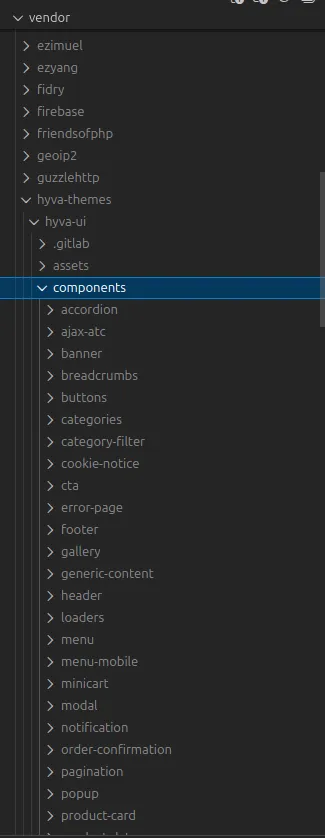
All Hyvä UI components live in your Magento installation at the path below. If you are still deciding whether Hyvä fits your project, our guide on Hyvä Theme going open source covers what changed with licensing and cost.
vendor/hyva-themes/hyva-ui/components This folder holds several component types, including:
- Menu
- Accordion
- Tab
- Modal
How Hyvä UI Components Get Into Your Project
Hyvä UI ships as a Composer package, so it arrives through your project’s dependencies rather than a manual download. If your Magento installation already has Hyvä Theme set up, you can pull in Hyvä UI with:
composer require hyva-themes/hyva-uiOnce Composer finishes, the components sit inside vendor/hyva-themes/hyva-ui/components, the same folder mentioned above. Pin the version in your composer.json if you want to control exactly when updates come through, since a fresh composer update can pull in newer components you haven’t reviewed yet.
Step 2: Pick the Exact Design Variation
Here is what that looks like using the menu component as an example.
vendor/hyva-themes/hyva-ui/components/menuInside that folder, you will find several menu design variations. One of them is a four column mega menu:
vendor/hyva-themes/hyva-ui/components/menu/B-4-column-megamenu
Each folder is a complete, ready-to-use design option. Pick the one that fits your theme and work from there.
Step 3: Review the Component Folder Before Copying Anything
Every Hyvä UI component follows the same folder structure, so once you understand one, you understand all of them.
1. The README.md File
Read this first. The README.md file lays out exactly what you need for:
- Theme prerequisites
- File copies required
- File placement
- Layout XML guidelines
- Options for configuration
Skipping this file is the most common way people end up copying the wrong files or missing a required layout update.
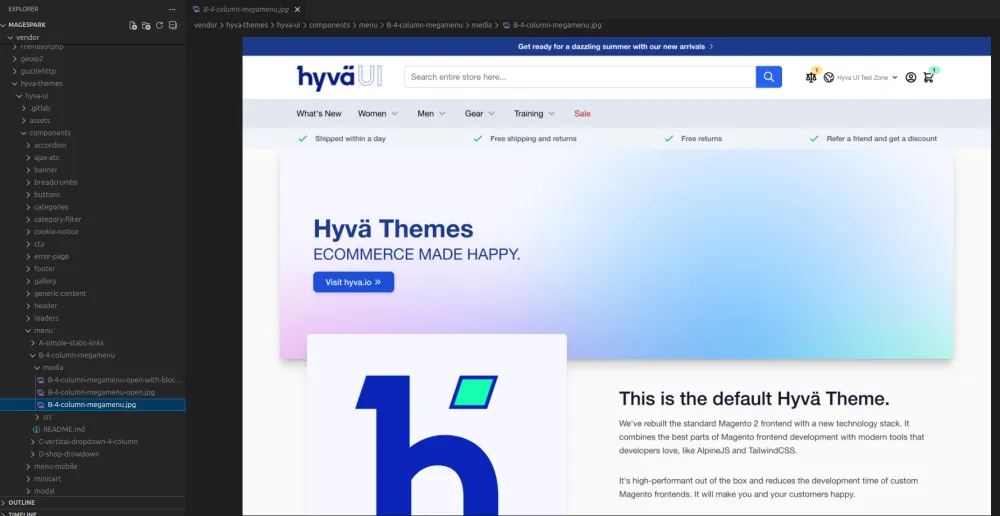
2. The media Folder
This folder holds screenshots of the finished component, so you can see what you are about to build before you touch any code.
3. The src Folder
This is the folder that matters most. It holds the actual PHTML and layout XML files you will copy into your own theme or module.
Step 4: Copy Files Into Your Theme, Never Edit Vendor
Hyvä UI components live inside the vendor directory, but you should never edit those files directly. Any change made there gets silently overwritten the next time you run a Composer update, and there is no warning before it happens.
Instead, follow this correct workflow:
- Read files from
vendor/ - Next, copy required files from the
src/directory - Paste them into your custom Hyvä theme or module
Are Hyvä UI Components Plug-and-Play?
No, and that is on purpose. Hyvä UI components are reference implementations, not one-click installers. Using one usually means:
- Copying PHTML and layout XML files
- Adding layout updates
- Passing block arguments
- Optional Tailwind CSS customization
That extra step is what gives you full control over how the final component looks and behaves in your theme.
Common Mistakes When Adding Hyvä UI Components
Most problems with Hyvä UI components come from skipping a step rather than doing something wrong. Here are the ones that come up most often.
- Forgetting to run setup:upgrade. If your new layout XML or block class doesn’t show up, run
bin/magento setup:upgradebefore assuming the component itself is broken. - Tailwind not picking up the new classes. If a component looks unstyled after you copy it in, check that your theme’s Tailwind config actually scans the folder you pasted the files into. A class that Tailwind never sees gets stripped out during the build.
- Editing files inside vendor/ directly. Any change made there gets wiped out the next time you run a Composer update. Always copy the src files into your own theme or module first, then edit the copy.
- Missing di.xml for third-party compatibility. This only applies if you’re adapting a Hyvä UI component to work with a third-party extension. If the component silently fails to render, a missing compatibility entry in di.xml is usually the reason.
Hit one of these issues on a live store?
If a Hyvä UI component is not rendering the way you expect, our team can take a look and tell you exactly what is missing.
Get help with your Hyvä setup →Step 5: Wire the Component Up With Layout XML
Here is a simple example of how a menu component gets wired up through layout XML:
<referenceBlock name="header.menu">
    <block class="Magento\Framework\View\Element\Template"
           name="custom.hyva.menu"
           template="Vendor_Theme::menu/custom-menu.phtml" />
</referenceBlock>
The exact layout XML and referenceBlock names will differ between components, so the README is still the source of truth. Treat the example above as a pattern to follow, not something to copy exactly into every project.
Hyvä Theme vs Hyvä UI (Important Difference)
These two get mixed up constantly, so it is worth being precise.
| Hyvä Theme | Hyvä UI |
|---|---|
| Core frontend framework | Optional component library |
| Required to run a Hyvä-based store | Not required, use only what you need |
You can run Hyvä Theme without touching Hyvä UI at all, or use only the specific components that solve a real problem in your project.
What Hyvä UI Includes (And What It Doesn’t)
| Included | Not included |
|---|---|
| Ready-made UI patterns | One-click installation |
| Alpine.js-based interactivity | Drag-and-drop UI builder |
| Tailwind CSS styling | Zero-configuration setup |
| Best-practice frontend examples |
Final Thoughts
Hyvä UI gives you speed without locking you into someone else’s design decisions. Once you understand the folder structure and the one rule about vendor files, using it becomes second nature.
Follow the README for each component, copy files into your own theme instead of editing vendor, and you end up with a fast, maintainable storefront that survives future Hyvä updates without breaking.
Frequently Asked Questions
Do I need Hyvä Theme installed before I can use Hyvä UI components?
Can I use only some Hyvä UI components instead of all of them?
Will editing vendor files break future updates?
Need a hand wiring up Hyvä UI components?
We build and support Hyvä storefronts every day. If you want a second pair of eyes on your setup, we are happy to help.
Talk to a Hyvä specialist
Passionate Magento developer with expertise in custom module development, Hyvä themes, and Adobe Commerce. Dedicated to creating high-quality, maintainable solutions that improve performance and user experience.