TL;DR
- WordPress migration doesn’t have to be stressful. The right migration plugin can help you move your website safely with minimal downtime and little technical effort.
- Every migration tool has a different strength. Some are built for beginners, while others are designed for developers, agencies, or businesses managing complex websites.
- Free plugins are often enough for smaller websites. However, premium solutions usually include advanced features like automated backups, staging environments, and better support for larger websites.
- In this guide, we’ll compare eight of the best WordPress migration plugins to help you choose the right solution for your website and migration requirements.
Why WordPress Migration Feels Riskier Than It Should?
Delaying a WordPress migration rarely comes down to pricing, server performance, or missing features. Most of the time it comes down to fear.
Site owners worry about breaking something that took years to build. They worry about losing content, customer data, or SEO rankings that took just as long to earn. And they worry about customers showing up to a site that’s suddenly down.
If you’ve ever planned a WordPress migration, those concerns probably sound familiar.
Why Migrations Go Wrong?
Migrating a website sounds simple, but it involves far more than copying files from one server to another. Databases need to stay intact. Plugins need to keep working. Themes have to display properly, DNS settings need updating, SSL certificates need configuring, and every page should load exactly the way it did before the move.
A minor mistake during any of that can lead to broken images, missing pages, plugin conflicts, failed email delivery, or unexpected downtime. For a business website, those problems translate quickly into lost revenue and frustrated visitors.
WordPress migration tools have improved a lot over the last few years. Many modern plugins now offer automated migrations, staging environments, rollback options, scheduled backups, cloud integrations, and guided workflows. These features cut down on manual work and make the whole process far more reliable than it used to be.
Whether you’re moving a personal blog, a WooCommerce store, a client website, or a multisite installation, there’s a migration plugin built for your specific situation.
To help you pick one, we reviewed some of the most popular WordPress migration plugins, comparing their features, ease of use, pricing, limitations, and the types of websites they’re best suited for. What follows is a carefully selected list of eight plugins that consistently deliver dependable results, whatever your experience level.
Best WordPress Migration Plugins at a Glance
Our comparisons are based on each plugin’s own documentation, pricing pages, and publicly available feature lists, along with feedback we’ve seen from clients who’ve used these tools on real WordPress migrations. Pricing shown below reflects what each vendor listed at the time of writing (August 2026). Vendors change pricing and plans fairly often, so check the linked page for each plugin before making a decision.
Why trust this list
Stagebit has been building, migrating, and maintaining WordPress and WooCommerce sites since 2017. We work with these platforms daily as part of our client work, not just as a topic we write about. If a plugin has a real limitation, we say so directly instead of glossing over it to make the list look tidier.
| # | Plugin | Best For | Pricing | Free Version | What’s Unique? |
|---|---|---|---|---|---|
| 🥇 | All-in-One WP Migration | Simple website migrations | Free (Extensions start at $69) | ✅ | Easy drag-and-drop migration with an intuitive interface. |
| 🥈 | Duplicator | Complete website cloning and migration | $59/year (Pro) | ✅ | Packages your entire website into a single deployable archive. |
| 🥉 | BlogVault | Business websites and WooCommerce stores | $89/year (Basic) | ❌ | Zero-downtime migrations combined with automated backups. |
| 4 | WP Migrate | Developers and agencies | From $49/year, up to $219/year for unlimited sites | ❌ | Advanced database synchronization with serialized data handling. |
| 5 | MigrateGuru | Large and high-traffic websites | Free | ✅ | Supports automated migrations for websites up to 200 GB. |
| 6 | UpdraftPlus Premium | Migration and backups in one solution | $70/year (Premium) | ✅ (Backups Only) | Combines scheduled backups, cloning, and migrations. |
| 7 | VaultPress (Jetpack Backup) | Jetpack users | $59.40/year | ❌ | Real-time backups with integrated security monitoring. |
| 8 | WPvivid Backup & Migration | Free all-in-one backup and migration | Free (Premium add-ons available) | ✅ | Combines free backup, migration, and remote storage in one plugin. |
Every website has different migration requirements. A small personal blog doesn’t need the same tools as a high-traffic WooCommerce store or an agency managing dozens of client websites.
We’ve marked our top three picks below based on how often we’d recommend them across the widest range of situations, but that doesn’t mean the other five are lesser tools. Below the table, we’ll explain where each of the eight excels, its strengths and limitations, and the situations where we’d confidently recommend using it.
Not sure which option fits your site?
Tell us your site size, your host, and what you’re moving to. We’ll tell you honestly whether a plugin from this list is enough, or whether your migration needs a hands-on approach, no pitch, just a straight answer.
Let’s start with one of the most beginner-friendly migration plugins available.
1. All-in-One WP Migration
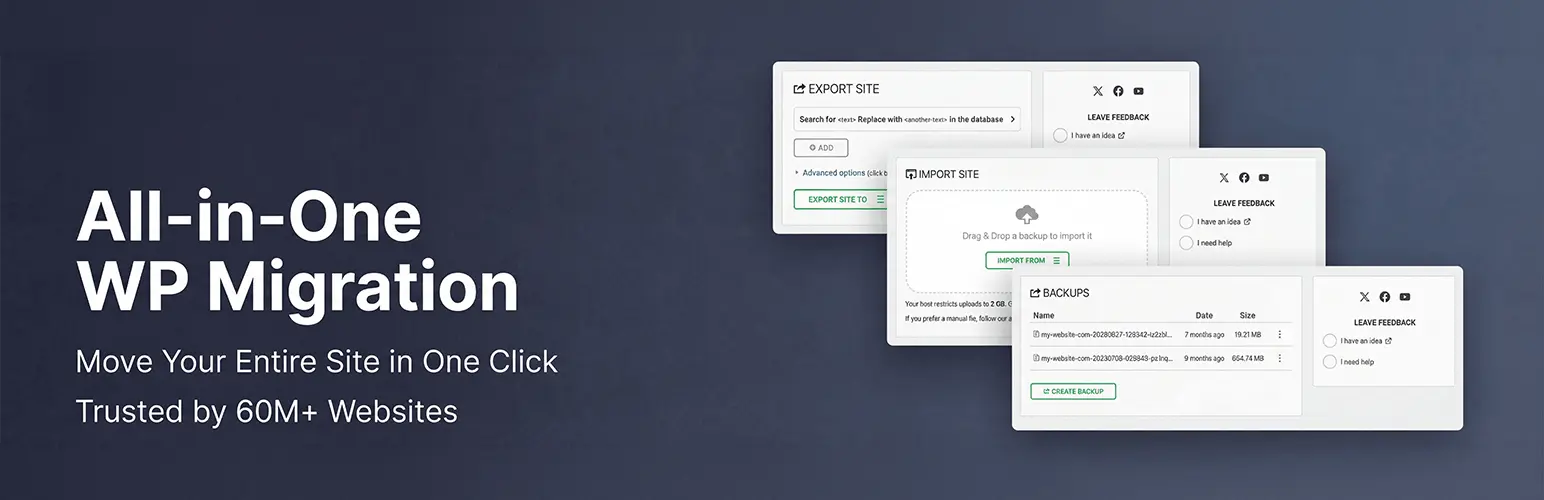
All-in-One WP Migration has earned its reputation as one of the easiest WordPress migration plugins to use. Since its release, it has become a popular choice for bloggers, freelancers, and small business owners who want to move their websites without dealing with complicated server configurations or database management.
What sets this plugin apart is its simplicity. Instead of asking users to export databases manually or upload files through FTP, it packages your entire WordPress website—including themes, plugins, media files, and the database—into a single export file. You can then import that file into another WordPress installation using a straightforward drag-and-drop interface.
This streamlined workflow makes the migration process approachable even for users with little or no technical experience.
While the free version works well for many smaller websites, websites with larger media libraries or complex requirements may eventually need one of the premium extensions to remove upload size limits and unlock additional storage options.
Features
- Simple drag-and-drop import and export process that eliminates much of the technical complexity.
- Migrates your complete WordPress website, including the database, themes, plugins, media files, and uploads.
- Compatible with most WordPress hosting providers without requiring additional server configuration.
- Premium extensions add support for larger websites, cloud storage services, and advanced migration capabilities.
Pros
- Extremely beginner-friendly, making it one of the easiest migration plugins for first-time users.
- Clean and intuitive interface that requires very little technical knowledge.
- Reliable performance for small and medium-sized WordPress websites.
- Large user community with extensive documentation and tutorials available online.
Cons
- The free version has import size limitations that may affect larger websites.
- Advanced migration features require purchasing one or more premium extensions.
Our Take: If you’re migrating your first WordPress website, this is one of the plugins we’d recommend without hesitation. It removes much of the technical complexity and offers a straightforward workflow that simply works. While larger websites may eventually outgrow the free version, it’s an excellent choice for bloggers, freelancers, and small businesses looking for a reliable and beginner-friendly migration solution.
2. Duplicator
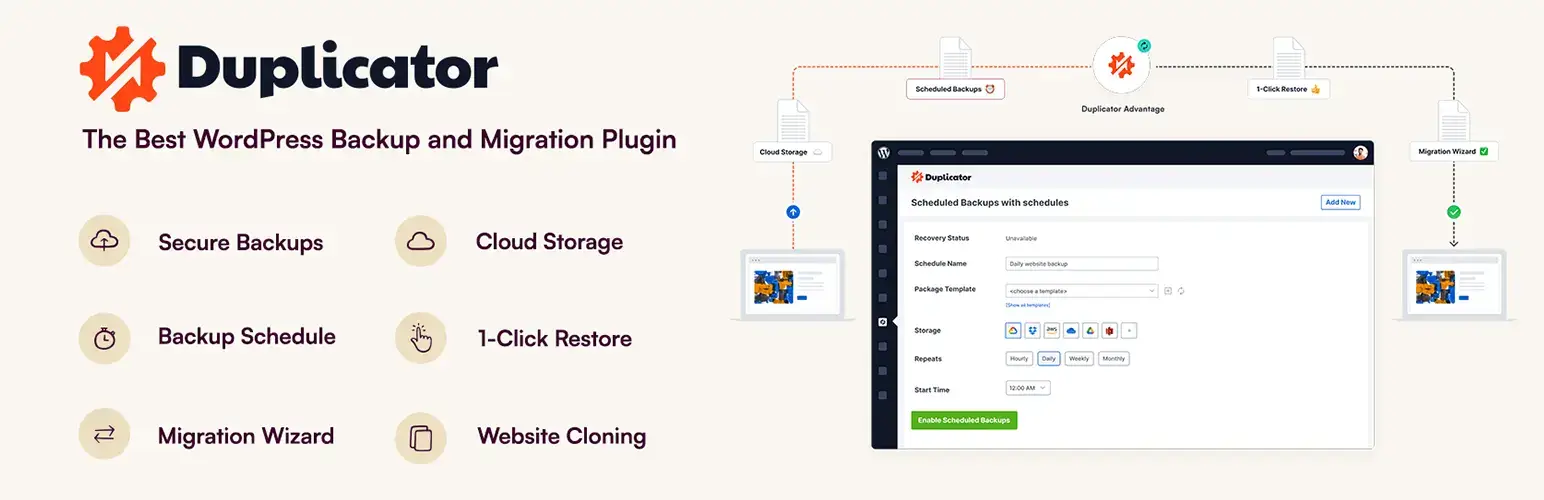
Duplicator is one of the most established WordPress migration plugins and has become a trusted tool for developers, freelancers, and agencies alike. While many users know it as a migration plugin, it’s equally valuable as a website cloning and backup solution.
Instead of simply transferring files, Duplicator creates a complete package of your WordPress installation. This package includes your database, plugins, themes, uploads, and WordPress core files, making it easy to deploy an exact copy of your website on another server or domain.
This approach makes Duplicator particularly useful when launching staging websites, migrating client projects, or creating reliable website backups before major updates.
Compared to beginner-focused migration plugins, Duplicator provides more flexibility and control. However, that additional flexibility also means there’s a slightly steeper learning curve for users who have never worked with hosting environments before.
Features
- Creates a complete package containing your website files, database, plugins, themes, and media library.
- Supports full website cloning, migration, backup creation, and disaster recovery.
- Allows both manual and automated migration workflows depending on your requirements.
- Works with websites of various sizes and hosting environments.
Pros
- Generous free version that includes many essential migration features.
- Highly flexible and suitable for both migrations and complete website backups.
- Reliable performance with excellent compatibility across different hosting providers.
- Ideal for developers and agencies managing multiple WordPress websites.
Cons
- Requires more technical knowledge than drag-and-drop migration plugins.
- Some advanced features for larger websites are only available in the Pro version.
Our Take: Duplicator strikes an excellent balance between flexibility and reliability. We’d recommend it to anyone who regularly migrates websites, creates staging environments, or manages client projects. Although beginners may need a little time to become familiar with its workflow, the additional control it offers makes it one of the most dependable migration plugins available.
3. WP Migrate

WP Migrate, formerly known as WP Migrate DB Pro, is built with developers in mind. Unlike beginner-focused migration plugins that emphasize one-click website transfers, WP Migrate gives you complete control over how your website’s database and media files are moved between different environments.
If your workflow involves local development, staging websites, and live production servers, you’ll quickly appreciate the level of flexibility this plugin offers. Instead of manually exporting databases, updating URLs, or fixing serialized data issues after every deployment, WP Migrate automates much of that work for you.
One of its biggest advantages is the ability to push and pull databases directly between WordPress installations. It also handles serialized data correctly during search-and-replace operations, something that’s notoriously difficult to do manually without breaking website functionality.
While WP Migrate is incredibly powerful, it’s not designed for absolute beginners. The interface assumes you’re comfortable working with development environments and understand how WordPress databases function.
Features
- Push and pull WordPress databases directly between websites.
- Automatically replaces URLs and file paths while preserving serialized data.
- Migrate media uploads alongside your database.
- Synchronize themes and plugins between development, staging, and production websites.
- Supports complex development workflows involving multiple WordPress installations.
Pros
- One of the best database migration tools available for professional WordPress developers.
- Handles serialized data correctly, reducing the risk of broken plugins or corrupted settings.
- Excellent integration with modern staging and deployment workflows.
- Saves considerable time for agencies and freelancers managing multiple client websites.
Cons
- Requires a paid license, and pricing scales up with the number of sites you need to cover.
- The feature set may feel overwhelming for beginners or users performing one-time website migrations.
- Better suited to developer workflows than simple drag-and-drop website transfers.
Our Take: WP Migrate isn’t trying to be the easiest migration plugin on the market—it’s trying to be one of the most powerful. If you’re a developer or agency regularly moving websites between local, staging, and live environments, it’s easily one of the strongest options available. However, if you’re migrating a personal website for the first time, you’ll probably find simpler alternatives like All-in-One WP Migration or Duplicator much easier to work with.
4. BlogVault
BlogVault approaches WordPress migration differently from most plugins on this list. Rather than focusing solely on moving a website from one server to another, it combines migrations with automated backups, staging environments, security, and disaster recovery.
That combination makes BlogVault particularly appealing to businesses and WooCommerce store owners, where even a few minutes of downtime can affect sales or customer trust.
One feature that consistently stands out is its zero-downtime migration process. Instead of taking your website offline while files are transferred, BlogVault performs the migration in the background and only switches the website once everything has been successfully verified.
Another advantage is its built-in backup system. Before starting a migration, BlogVault automatically creates a complete backup of your website, giving you a reliable restore point if anything unexpected happens during the transfer.
Although it costs more than many standalone migration plugins, you’re also paying for a complete website management solution rather than a migration tool alone.
Features
- Zero-downtime WordPress migrations.
- Automated daily backups with one-click restore functionality.
- Built-in staging environments for safely testing changes before going live.
- WooCommerce and multisite migration support.
- Cloud-based infrastructure that reduces the load on your hosting server during migration.
Pros
- Excellent reliability for business-critical WordPress websites.
- Combines backups, migrations, staging, and website management in a single platform.
- Performs exceptionally well with WooCommerce stores and larger websites.
- Strong customer support and detailed migration documentation.
Cons
- More expensive than many migration-only plugins.
- Some smaller websites may not need the additional backup and management features included in the subscription.
- The annual pricing may feel excessive if you only migrate websites occasionally.
Our Take: BlogVault is the plugin we’d choose when reliability matters more than price. If your website generates revenue, receives consistent traffic, or supports business operations, its combination of automated backups, staging environments, and zero-downtime migrations provides peace of mind that many free plugins simply can’t match. For personal blogs, it may be more than you need, but for business websites, it’s an investment that’s often well worth making.
5. MigrateGuru

If your biggest concern is migrating a large WordPress website without paying for a premium plugin, MigrateGuru deserves a place on your shortlist. It’s built specifically to simplify migrations for websites that are too large for many traditional migration tools.
One of the biggest challenges when migrating WordPress websites is running into server limitations. Large databases, thousands of media files, or limited PHP memory can cause migrations to fail halfway through the process. MigrateGuru tackles this problem by performing the migration on its own servers rather than relying entirely on your hosting environment.
This server-to-server approach allows the plugin to migrate websites as large as 200 GB while minimizing the risk of timeouts and memory limit errors. It also supports many popular hosting providers, making the setup process relatively straightforward.
Although the plugin focuses entirely on migrations and doesn’t include backup or staging functionality, it does its primary job exceptionally well—and it’s completely free.
Features
- Supports WordPress website migrations up to 200 GB.
- Uses dedicated migration servers to reduce the load on your hosting account.
- Compatible with many popular WordPress hosting providers.
- Automates the migration process without requiring manual database exports.
- Sends email notifications once the migration has been completed.
Pros
- Completely free to use with no hidden migration fees.
- Excellent performance when migrating large WordPress websites.
- Simple setup process that requires very little technical knowledge.
- Avoids common timeout and server resource limitations.
Cons
- Doesn’t include backup functionality.
- No staging environment for testing before deployment.
- Focused entirely on migrations rather than ongoing website management.
Our Take: MigrateGuru is one of the easiest plugins we’d recommend for large WordPress websites. If your primary goal is simply moving a website safely from one hosting provider to another, it does an outstanding job—especially considering it’s completely free. That said, if you also need scheduled backups or staging capabilities, you’ll probably want to pair it with another solution or consider a more comprehensive platform like BlogVault.
6. UpdraftPlus Premium

Most WordPress users recognize UpdraftPlus as one of the most trusted backup plugins available today. However, its Premium version offers far more than automated backups. It also includes website cloning and migration capabilities, making it an attractive option for users who want backup and migration features within a single plugin.
Instead of installing separate tools for backups and migrations, UpdraftPlus Premium allows you to manage both from the same dashboard. This not only simplifies website management but also ensures you always have a recent backup available before beginning a migration.
The plugin supports scheduled backups, multiple cloud storage providers, website cloning, and multisite compatibility, making it suitable for both individual website owners and agencies managing multiple projects.
While the interface contains more options than beginner-focused migration plugins, it’s still approachable once you become familiar with its workflow.
Features
- Website migration and cloning.
- Scheduled automatic backups.
- Supports numerous cloud storage providers, including Google Drive, Dropbox, and Amazon S3.
- Compatible with WordPress multisite installations.
- Backup restoration directly from the WordPress dashboard.
Pros
- Combines backups, cloning, and migrations in one solution.
- Trusted by millions of WordPress users worldwide.
- Flexible backup scheduling and cloud storage integrations.
- Excellent long-term value for website maintenance.
Cons
- Migration functionality is only available with the Premium version.
- The dashboard may feel overwhelming for users who only need a simple migration tool.
- Requires a paid subscription to unlock its most useful features.
Our Take: If you’re already looking for a reliable WordPress backup solution, UpdraftPlus Premium is an easy recommendation because migration comes included rather than being an additional purchase. We particularly like it for website owners who want long-term protection instead of a plugin they’ll only use once. If migration is your only objective, however, there are simpler and more affordable alternatives.
7. VaultPress (Jetpack Backup)

VaultPress, now part of Jetpack Backup, combines automated backups, security monitoring, and migration tools into a single managed platform. Rather than functioning solely as a migration plugin, it focuses on protecting your website while making recovery and migration significantly easier whenever they’re needed.
One of its biggest strengths is real-time backup technology. Instead of relying on scheduled backups alone, changes can be backed up as they happen, reducing the amount of data that could potentially be lost if something goes wrong.
Jetpack Backup also integrates seamlessly with other Jetpack security features, making it particularly appealing to users already invested in the Jetpack ecosystem.
While it isn’t the cheapest migration solution on this list, the additional security and backup capabilities help justify the subscription for many business websites.
Features
- Real-time website backups.
- One-click backup restoration.
- Migration and recovery tools.
- Integrated malware scanning and security monitoring.
- Cloud-based backup storage.
Pros
- Excellent backup reliability with automated protection.
- Simple recovery process if something goes wrong during migration.
- Strong integration with the Jetpack ecosystem.
- Trusted support from Automattic.
Cons
- Requires a Jetpack subscription.
- More expensive than standalone migration plugins.
- Best suited to users already using other Jetpack services.
Our Take: VaultPress isn’t the plugin we’d choose solely for migrating a website. However, if you’re already using Jetpack or want a solution that combines backups, security, and migration in one place, it offers excellent long-term value. It’s particularly well suited to businesses that prioritize website protection just as much as the migration itself.
8. WPvivid Backup & Migration Plugin
WPvivid is a free backup and migration plugin that covers both jobs without pushing you toward a paid upgrade to get the basics working. Where several plugins on this list split backup and migration into separate paid tiers, WPvivid keeps both in the free version, with premium add-ons reserved for extras like incremental backups and auto-migration scheduling rather than core functionality.
The migration process works the same way as most tools here: export your site into a package, then import it on the destination server through the plugin’s own interface. What sets it apart is the built-in backup scheduling that runs alongside migration, so you’re not choosing between a dedicated migration tool and a dedicated backup tool.
It also includes a staging feature and remote storage support (Google Drive, Dropbox, and others) without requiring a premium license, which is unusual among the free-tier plugins on this list.
Features
- Combined backup and migration in a single free plugin.
- Remote storage support for Google Drive, Dropbox, OneDrive, and Amazon S3 without a paid license.
- Built-in staging environment for testing changes before going live.
- Scheduled automated backups alongside on-demand migration.
Pros
- Genuinely free for both backup and migration, not just one or the other.
- Remote storage integrations that usually require a premium plan elsewhere are included at no cost.
- Active development and a large installed user base.
Cons
- Large sites can hit longer processing times compared to premium offsite-processing tools like BlogVault.
- Some advanced scheduling and incremental backup features do require the premium version.
Our Take: WPvivid is the plugin we’d point to when someone wants backup and migration handled by one free tool rather than juggling two separate plugins or paying for premium just to get basic migration working. It won’t match BlogVault’s offsite processing for very large sites, but for most small and mid-sized WordPress installs, it’s a genuinely capable free option.
Common WordPress Migration Mistakes to Avoid
Even the best WordPress migration plugin can’t compensate for poor preparation. Most migration problems aren’t caused by the software itself—they happen because important steps are skipped before or after the migration.
Whether you’re moving a personal blog or a business-critical website, taking a little extra time to prepare can save hours of troubleshooting later. Here are some of the most common mistakes we see website owners make during WordPress migrations.
1. Not Creating a Complete Backup
Always create a full backup before starting a migration. While most migration plugins are reliable, unexpected issues such as server failures, interrupted transfers, or plugin conflicts can still occur. A recent backup gives you a reliable way to restore your website if something doesn’t go as planned.
2. Forgetting to Document Important Settings
Before migrating, make a note of your active plugins, theme settings, custom code snippets, email configurations, SSL certificates, and third-party integrations. This makes it much easier to identify anything that may need to be reconfigured after the migration.
3. Overlooking DNS and Domain Settings
Many migrations are completed successfully, but visitors still can’t access the website because DNS records haven’t been updated correctly. Double-check your domain settings and allow enough time for DNS propagation before assuming something has gone wrong.
4. Not Testing the Website After Migration
Once the migration is complete, don’t assume everything is working perfectly. Visit important pages, test contact forms, log in to user accounts, complete a test checkout if you’re running WooCommerce, and verify that images, menus, and internal links are functioning as expected.
5. Ignoring SSL and Security Checks
After moving to a new server, SSL certificates sometimes need to be reissued or reconfigured. Make sure your website loads securely over HTTPS and confirm that security plugins, firewalls, and malware protection continue working correctly.
6. Not Monitoring the Website After Launch
The migration doesn’t end when the website goes live. Keep an eye on Google Analytics, Google Search Console, uptime monitoring, and server error logs during the first few days. Identifying problems early can prevent them from affecting your visitors or search rankings.
7. Skipping a Staging Environment
If your hosting provider or migration plugin supports staging websites, use them. Testing the migration in a staging environment allows you to identify compatibility issues before they affect your live website, making the final migration far less stressful.
Our Advice: Think of a WordPress migration as more than simply moving files from one server to another. It’s an opportunity to verify backups, clean up outdated plugins, review your website’s security, and ensure everything is working exactly as expected before visitors arrive.
FAQ
How long does a WordPress migration usually take?
Can I migrate WordPress without using a plugin?
Will migrating my WordPress site hurt my SEO rankings?
Which WordPress Migration Plugin Should You Choose?
Choosing the right WordPress migration plugin isn’t about finding the one with the most features. It’s about picking the one that fits your website, your technical comfort level, and what you’re actually trying to do.
If you’re new to WordPress or only migrate a site occasionally, All-in-One WP Migration and Duplicator strike a good balance between simplicity and reliability. Both have intuitive workflows that suit bloggers, freelancers, and small business owners well.
Developers and agencies get more out of WP Migrate and WP Migrate DB Pro, which offer advanced database synchronization and deployment features built for that kind of work. BlogVault and MigrateGuru are the better picks for larger websites or WooCommerce stores that need dependable migrations with minimal downtime.
And if you’re already using a backup solution, UpdraftPlus Premium and VaultPress (Jetpack Backup) combine migration with ongoing website protection, which makes them a solid long-term investment rather than a one-time tool.
Check If Your Host Already Offers Free Migration
Before installing a plugin, it’s worth checking whether your hosting provider includes migration as part of your plan. Many popular WordPress hosts offer free or low-cost migration as a standard service, and some will move your site for you within a few hours of you submitting a request. If that option is available to you, it can be the simplest path of all, no plugin, no manual steps, and someone else handles the technical parts.
Ask your current host or your new host directly whether migration is included, most support teams will tell you plainly whether it’s a free service, a paid add-on, or something they don’t offer at all.
Or Skip the Plugin Entirely and Let Us Handle It
Every option above assumes you’re comfortable running the migration yourself, whether that’s clicking through a plugin’s wizard or troubleshooting a failed transfer at 11pm. If that’s not how you want to spend your afternoon, Stagebit migrates WordPress and WooCommerce sites as part of our regular client work. You tell us where the site is coming from and going to, and we handle the rest.
This isn’t a plugin recommendation, it’s simply the option that exists if none of the eight above feel right for your situation.
Final Thoughts
There’s no single plugin that’s perfect for every website. The best choice depends on your site’s size, your budget, and whether you need a one-time migration tool or a complete backup and migration solution.
Whatever you choose, create a backup before migrating and test your website thoroughly after the move. That one habit prevents most of the unnecessary downtime and surprises that come with switching hosts or servers.
Have you used any of the WordPress migration plugins featured in this guide? We’d love to hear your experience and which solution worked best for your website.
Want more WordPress tips? Check out: 10 Common WordPress Mistakes to Avoid in 2026
Would rather not run the migration yourself?
We migrate WordPress and WooCommerce sites for a living, zero downtime, full testing, no surprises after launch. If you’d rather hand this off, we can take it from here.

Sajid has four years of experience building e-commerce-focused websites, primarily using PHP, WordPress, Magento, Shopify, and Shopware 6. He's comfortable with JavaScript, jQuery, CSS, and SCSS, using them to bring designs to life and fine-tune the details that make a site feel right. His focus is building websites that are fast, dependable, and genuinely easy for people to use.